
Author: admin

RAG Pipeline/Demo: Understanding – Retrieval Augmented Generation

This project is a deep, production-aligned demonstration of a Retrieval Augmented Generation (RAG) system applied to realistic insurance documents.

Rather than hiding complexity, this demo makes every stage observable: document ingestion, chunking, embeddings, vector search, retrieval behavior, and how the LLM ultimately produces grounded answers.

This post walks through the system exactly as an insurance AI engineer would debug, evaluate, and productionize it. I’ve also written it so that even if you’ve never touched a RAG system before, you’ll understand what’s happening at each stage and why it matters.


Project Directory Structure

The repository is intentionally structured to mirror a real RAG service, with clear separation between ingestion, querying, exploration, and UI layers.

rag-documents-demo/
├── docs/                          # Mock insurance documents
│   ├── property_insurance_policy.txt
│   ├── motor_claims_procedure.txt
│   ├── underwriting_guidelines_commercial_property.txt
│   ├── business_interruption_policy.txt
│   ├── cyber_insurance_policy.txt
│   └── claims_faq.txt
│
├── chroma_db/                     # Persisted vector database
│
├── ingest.py                      # One-time document ingestion
├── explore_chunks.py              # Chunk inspection & validation
├── explore_embeddings.py          # Embedding + vector search inspection
│
├── query_cli.py                   # Interactive CLI RAG interface
├── app.py                         # Streamlit web UI
│
├── requirements.txt               # Python dependencies
├── .env.example                   # Environment variable template
└── README.md

This separation allows each stage of the RAG lifecycle to be inspected independently, which is critical when debugging hallucinations or retrieval failures.


Step 1: Document Ingestion

The ingestion phase loads raw insurance documents, splits them into chunks, creates embeddings, and stores them in a persistent vector database.

Think of ingestion as the preparation stage. It’s similar to how a new claims handler would read through every policy document on their first week, highlight the important sections, and organise their notes so they can find answers quickly later. The system does this once upfront, so every future question can be answered in seconds rather than requiring a full search through every document.

Command

python3 ingest.py

Execution Output

INSURANCE DOCUMENTS INGESTION PIPELINE
================================================================================
Loaded 6 documents

property_insurance_policy.txt: 4,205 characters
motor_claims_procedure.txt: 7,453 characters
underwriting_guidelines_commercial_property.txt: 12,204 characters
business_interruption_policy.txt: 13,200 characters
cyber_insurance_policy.txt: 17,260 characters
claims_faq.txt: 18,483 characters

Splitting documents into chunks (size=1000, overlap=200)
Created 96 chunks
Average chunk size: 824 characters

Creating embeddings with text-embedding-3-small
Persisted vector store to chroma_db

INGESTION COMPLETE
================================================================================

What This Means

  • Each document is loaded with source metadata so the system always knows which file an answer came from
  • Documents are split into overlapping chunks to preserve context (more on this below)
  • Each chunk is embedded exactly once, converted into a numerical fingerprint the system can search against
  • The vector database is saved to disk and reused across every future query

This mirrors production best practice: ingestion is a batch job run once (or when documents change), not something that happens every time someone asks a question.


Step 2: Chunking. Why We Break Documents Into Pieces

Chunking is the most important design decision in any RAG system. Poor chunking guarantees poor retrieval, and poor retrieval means the AI gives bad answers regardless of how good the language model is.

Why not just feed the whole document to the AI? Language models have a limited context window, which is the maximum amount of text they can process at once. Even with modern models that accept large inputs, sending entire documents is wasteful and expensive. More importantly, it’s less accurate. If you dump a 30-page policy document into the AI and ask about exclusions, the model has to find the relevant paragraph buried in thousands of words of irrelevant content. It’s like asking someone to find a specific clause by reading an entire filing cabinet instead of going straight to the right folder.

Instead, we break each document into smaller, focused pieces called chunks, and only send the most relevant ones to the AI when a question is asked.

Command

python3 explore_chunks.py

Chunking Configuration

chunk_size: 1000 characters
chunk_overlap: 200 characters
separators:
- Paragraph breaks
- Line breaks
- Spaces
- Characters (fallback)

Chunk size (1000 characters) means each piece is roughly a long paragraph. This is large enough to contain a complete thought (an entire exclusion clause, a full FAQ answer, or a complete step in a claims process) but small enough that it stays focused on one topic.

Chunk overlap (200 characters) is the clever part. Imagine you’re cutting a long document with scissors. If you cut cleanly between paragraphs, you might separate a sentence from the context that makes it meaningful. For example, a policy might say “Subject to the conditions in Section 3.2 above, the following exclusions apply…” and if Section 3.2 ended up in the previous chunk, the exclusions chunk loses critical context. The 200-character overlap means each chunk shares its edges with its neighbours, like overlapping tiles on a roof. Nothing falls through the gaps.

Chunk Statistics

Total chunks: 96
Average size: 824 characters
Min size: 115 characters
Max size: 996 characters

Chunks per Document

business_interruption_policy.txt: 18
claims_faq.txt: 25
cyber_insurance_policy.txt: 22
motor_claims_procedure.txt: 9
property_insurance_policy.txt: 6
underwriting_guidelines_commercial_property.txt: 16

Notice the claims FAQ produced the most chunks (25) despite not being the longest document. That’s because FAQs have natural paragraph breaks between each question-answer pair, and the splitter respects those boundaries. This is exactly what we want. Each FAQ entry becomes its own chunk, so when someone asks “how do I report a claim?” the system retrieves that specific Q&A rather than a random slice of text.

Why This Matters for Answer Quality

  • Exclusions stay grouped so the AI can list all exclusions from a single retrieval
  • Definitions are not split mid-sentence, so the AI never sees half a definition
  • Claims workflows remain sequential. Step 1, 2, 3 stay together
  • FAQ questions stay paired with their answers. The system never retrieves a question without its answer

Chunk inspection is how you prevent hallucinations before they happen. If the AI is giving wrong answers, the first thing you check is whether the chunks themselves make sense, because the AI can only work with what it’s given.


Step 3: Embeddings. Teaching the Computer to Understand Meaning

This is where the system goes from working with text to working with meaning, and it’s the core technology that makes intelligent search possible.

The problem with traditional search: If you search a document for the word “exclusion” you’ll find every mention of that exact word. But what if the policy says “this coverage does not extend to…” or “the following are not covered…”? Traditional keyword search misses those entirely, even though they mean the same thing. And if someone asks “what am I NOT covered for?” there’s no keyword match at all, despite it being the same question.

What embeddings do: Each chunk of text is converted into a list of 1,536 numbers, called a vector, that represents what the text means, not just what words it contains. Think of it like plotting every chunk on an enormous map with 1,536 dimensions. Chunks that discuss similar topics end up close together on this map, even if they use completely different words.

So “exclusions under this policy” and “what am I NOT covered for?” end up in the same neighbourhood on the map, because they’re about the same concept. Meanwhile, “exclusion zone” (a geography term) would be plotted far away, because its meaning is different despite sharing the word “exclusion”.

Embedding Properties

  • 1,536 dimensions per chunk. Each chunk is represented by 1,536 numbers, giving the system a rich understanding of meaning
  • Zero-centred values. The numbers range around zero, which is standard for this type of mathematical representation
  • Optimised for cosine similarity. The system measures “closeness” by comparing the angle between vectors, not the raw distance

Example Embedding

Vector (first 10 of 1,536 dimensions):
[-0.0023, 0.0599, 0.0538, 0.0673, -0.0519,
 0.0266, -0.0368, 0.0067, 0.0085, 0.0493]

These individual numbers don’t mean anything on their own. You can’t look at 0.0599 and say “that’s the insurance dimension.” The meaning emerges from the pattern across all 1,536 numbers taken together, and specifically from how one chunk’s pattern compares to another’s. Two chunks with similar patterns are about similar topics. That’s the entire principle behind semantic search.

The Trade-offs of This Approach

Converting text into vectors is what makes the whole system work, but it comes with trade-offs worth understanding:

On the plus side, retrieval is extremely fast because the search is just maths on numbers rather than scanning through text. It also understands semantic meaning, so you get results based on what text means rather than which keywords it contains.

On the other hand, every piece of text must be converted to vectors before it can be searched, and that conversion costs API calls. There’s also a storage cost: 96 chunks multiplied by 1,536 numbers multiplied by 4 bytes per number comes to roughly 590KB for this demo. That’s trivial at this scale, but it grows linearly with your document corpus and becomes a real consideration when you’re indexing thousands of policy documents.


Step 4: Semantic Similarity Search. Finding the Right Answers

When a user asks a question, the exact same embedding process is applied to their query, turning it into another point on that 1,536-dimension map. The system then finds the chunks that are closest to the query on that map.

This is like walking into a library where every book is arranged by topic rather than alphabetically. You describe what you’re looking for, the librarian figures out which section that belongs in, and pulls the most relevant books from that shelf. Except this librarian understands meaning, not just keywords.

Example Query

What does the cyber policy exclude?

Retrieved Chunks

Rank 1 - cyber_insurance_policy.txt (score: 0.35)
Rank 2 - cyber_insurance_policy.txt (score: 0.34)
Rank 3 - business_interruption_policy.txt (score: 0.24)

The scores represent how semantically close each chunk is to the question. A score of 0.35 means strong relevance; that chunk is about the same topic as the question. The system correctly identifies that the top two results come from the cyber policy (which is exactly where exclusions for cyber coverage would be), and also surfaces a business interruption chunk that likely discusses related exclusions.

What “good” scores look like: In real-world RAG systems, similarity scores typically fall between 0.2 and 0.5 for relevant results. You won’t see scores of 0.9 or 1.0 unless the query is almost identical to the chunk text. A score of 0.3 to 0.4 indicates the system has found genuinely relevant content. Not an exact match, but a strong semantic relationship.


Step 5: Interactive Retrieval (Raw View)

Interactive mode shows what the retriever returns before the LLM reasons over it. This is the debugging view. It lets you see exactly what context the AI will receive, so you can understand why it gives the answers it does.

Command

python3 explore_embeddings.py

Example Query: “waiting period”

Rank 1 - business_interruption_policy.txt (0.12)
Rank 2 - claims_faq.txt (0.05)
Rank 3 - claims_faq.txt (0.05)
Rank 4 - claims_faq.txt (0.01)

Why This Looks Noisy

Notice the scores are much lower here (0.01 to 0.12) compared to the cyber exclusions query. That’s because “waiting period” is a short, ambiguous query. Multiple documents discuss timing concepts in different contexts (claims processing times, business interruption waiting periods, policy cooling-off periods). The retriever casts a wide net because it can’t be sure which “waiting period” the user means.

  • The query is short and ambiguous. More specific questions produce tighter results
  • Multiple documents discuss timing concepts in different ways
  • The system intentionally prioritises recall (finding everything potentially relevant) over precision (only returning perfect matches)

This is by design. The LLM in the next stage acts as the intelligent filter. It reads all the retrieved chunks, works out which ones actually answer the question, and synthesises a coherent response while ignoring the noise. The retriever’s job is to make sure the right information is in the mix; the LLM’s job is to make sense of it.


Step 6: LangChain Orchestration

LangChain is the framework that connects all of these components (document loading, chunking, embedding, vector storage, retrieval, and LLM generation) into a single pipeline.

Core Components

DirectoryLoader("docs")                        # Load documents from folder
RecursiveCharacterTextSplitter(...)            # Split into chunks
OpenAIEmbeddings(...)                          # Convert to vectors
Chroma.from_documents(...)                     # Store in vector database
ConversationalRetrievalChain.from_llm(...)     # Wire it all together

Without a framework like LangChain, you’d be writing hundreds of lines of glue code to pass data between these stages, manage conversation history, format prompts, and handle errors. LangChain removes that boilerplate while keeping the behaviour explicit and debuggable. You can inspect what’s happening at every stage, which matters when you need to understand why the system gave a particular answer.

When to Use Which Framework

The project also includes a LlamaIndex implementation for comparison. The choice between the two comes down to what you’re building. LlamaIndex is purpose-built for RAG and document Q&A. It’s more opinionated, has less boilerplate, and gets you to a working retrieval system faster. This insurance demo is a textbook LlamaIndex use case. LangChain is the better choice when your system needs to go beyond retrieval into agents, complex multi-step chains, tool calling, or memory systems. It’s more flexible but comes with more wiring.

If your project is “ask questions, get grounded answers from documents,” start with LlamaIndex. If your project is “orchestrate multiple AI capabilities, call external tools, and maintain complex state,” reach for LangChain. Both are production-capable and both are included in this demo so you can compare them directly.


CLI and Web Interfaces

Two user-facing interfaces are provided:

  • CLI for debugging and evaluation, useful for testing queries quickly and inspecting raw retrieval results
  • Streamlit UI for demonstration, providing a clean chat interface with expandable source citations and conversation history

Both interfaces use the exact same retrieval and generation pipeline underneath. The only difference is how the results are displayed. This is important because it means any answer you get from the web UI is identical to what the CLI would produce, making it easy to test and debug without switching tools.


What’s Missing for Production

This demo is deliberately focused on correctness and observability, making every stage visible and verifiable. A production deployment would add the resilience, scale, and governance layers that enterprise systems require:

Required Additions

  • Error handling and retries for graceful recovery when API calls fail
  • Monitoring and cost tracking for visibility into query volumes, response times, and API spend
  • Managed vector database (Pinecone / Weaviate) for scale, reliability, and multi-user access
  • Caching (Redis) to avoid re-computing answers for repeated questions
  • Security and RBAC to control who can query which documents
  • Evaluation frameworks (RAGAS) for systematic measurement of answer quality
  • Hybrid search and reranking to combine semantic search with keyword matching for better recall
  • Docker, CI/CD, backups as standard production infrastructure

The demo focuses on getting the fundamentals right. Production systems layer resilience, scale, and governance on top of those fundamentals, but without correct chunking, good embeddings, and reliable retrieval, none of the production tooling matters.


This is great to learn how to do real AI under the hood stuff.

This project demonstrates how to build a trustworthy documents RAG system by making every stage explicit, inspectable, and testable.

In regulated industries or any large data set setup , the AI’s answer is only as good as the evidence behind it. Every response in this system can be traced back to specific document chunks, with similarity scores that explain why those chunks were selected. That transparency is what makes LLMs usable in environments where getting it wrong has real consequences.

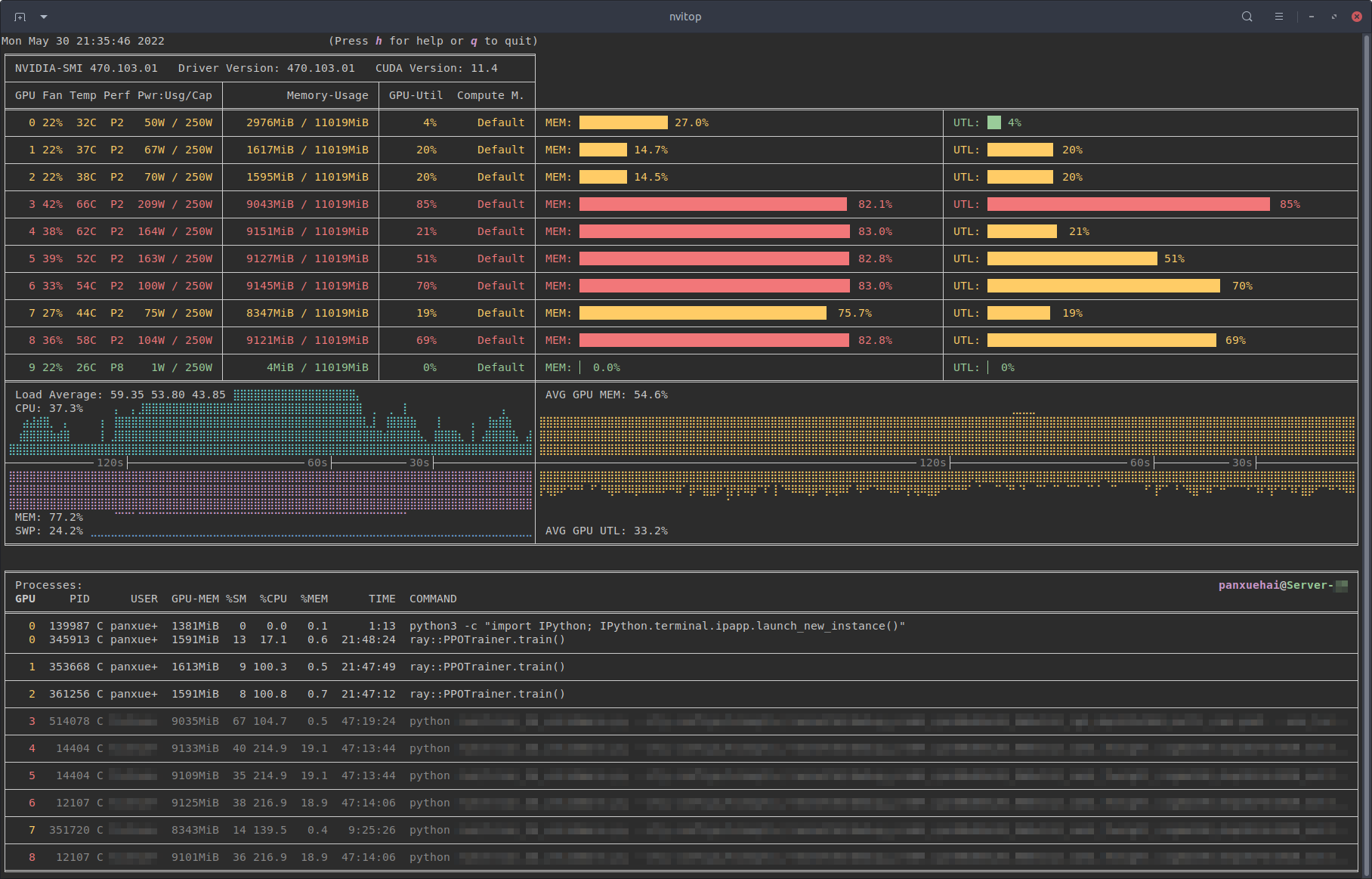
nvitop – The Ultimate Interactive NVIDIA GPU Monitoring Tool

If you’re working with NVIDIA GPUs  whether for deep learning, HPC, or systems administration  you’ve likely used the default nvidia-smi tool to check GPU status. But what if you want something more dynamic, interactive, and user-friendly? Enter nvitop, an incredible interactive NVIDIA GPU process viewer that makes monitoring your GPUs intuitive and informative.

nvitop in action - animated demonstration
nvitop in action — real-time GPU monitoring with an interactive interface

nvitop is a Python-based GPU monitoring tool that extends and enriches what nvidia-smi does  with live updates, color coding, interactive filtering, and more. It’s perfect for developers, engineers, researchers, and admins who need real-time insight into how GPU resources are being used.


What Makes nvitop Different?

Unlike nvidia-smi, which outputs a static snapshot, nvitop offers a fundamentally different experience:

  • Interactive Real-Time Monitoring — Runs as a live monitor that refreshes continuously, similar to htop for CPUs
  • Color-Coded Output — Intuitive visuals make it easy to spot heavy GPU usage and memory pressure at a glance
  • Process Management — Sort, filter, and manage processes directly with keyboard controls
  • Rich Data Display — GPU metrics including utilization, memory, temperature, power, and processes in a compact, organized view
  • Cross-Platform — Works on both Linux and Windows
nvitop monitor mode interface
Monitor mode of nvitop showing GPU utilization, memory usage, and running processes

Side-by-Side Comparison with nvidia-smi

The difference becomes immediately apparent when you compare nvitop’s output with the traditional nvidia-smi tool:

nvitop compared to nvidia-smi
nvitop (top) vs nvidia-smi (bottom) — notice the richer information density and visual clarity

Installation

Installing nvitop is straightforward. If you have Python installed, you can use pip:

pip install --upgrade nvitop

Or, if you prefer conda:

conda install -c conda-forge nvitop

For isolated environments using uvx or pipx:

uvx nvitop
# or
pipx run nvitop

Once installed, simply run:

nvitop

This launches the interactive monitor showing your NVIDIA GPUs, their current utilization, and the processes using them — all updating live.


What You’ll See

Running nvitop in your terminal displays a live dashboard with comprehensive GPU stats:

  • GPU temperature and fan speed
  • Memory usage with bar charts
  • GPU and memory utilization percentages
  • Power consumption
  • Process list with GPU memory and compute usage per process
  • History graphs for utilization trends

It’s like combining the best of nvidia-smi, top, and htop — but specifically designed for your GPUs.

nvitop process filtering
Process filtering and colorful interface — easily identify resource-heavy processes

Process Metrics and Management

One of nvitop’s standout features is the ability to dive deep into individual process metrics. Select a process and press Enter to see detailed live graphs:

nvitop process metrics screen
Process metrics screen — watch detailed GPU usage for a specific process

You can also manage processes directly from the interface:

  • Ctrl+C or I — Send interrupt signal (SIGINT)
  • T — Terminate process (SIGTERM)
  • K — Kill process (SIGKILL)
  • t — Toggle tree-view to see process hierarchies
  • e — View environment variables

Windows Support

Unlike many GPU monitoring tools that are Linux-only, nvitop works natively on Windows as well:

nvitop running on Windows
nvitop running on Windows with PowerShell in Windows Terminal

Built-in Help

Press h at any time to access the comprehensive help screen with all available keybindings:

nvitop help screen
The built-in help screen — press h to access

Why This Matters

Real-time GPU visibility is crucial in many modern workloads:

  • Deep Learning Training — See which models or data pipelines are consuming your GPU resources and identify bottlenecks
  • HPC / Multi-User Servers — Quickly identify who is using GPUs and how much, essential for shared compute environments
  • Debugging — Spot processes consuming excessive memory or identify stuck jobs that need intervention
  • DevOps Monitoring — Integrate with larger monitoring stacks using nvitop’s Python API or the new nvitop-exporter for Grafana dashboards

Key Features Summary

Feature Description
Live Monitoring Continuous updates with configurable refresh intervals
Process Management Kill, terminate, or interrupt processes directly
Tree View See process hierarchies and parent relationships
Device Selection Includes nvisel tool for CUDA device selection
Python API Full programmatic access for custom monitoring tools
MIG Support Works with NVIDIA Multi-Instance GPU configurations
Grafana Integration Export metrics via nvitop-exporter for dashboards

Common Usage Examples

# Basic monitoring (auto display mode)
nvitop

# One-shot query (like nvidia-smi)
nvitop -1

# Full display mode
nvitop -m full

# Compact display mode
nvitop -m compact

# Only show specific GPUs
nvitop -o 0 1

# Only show CUDA visible devices
nvitop -ov

# Colorful spectrum-like bar charts
nvitop --colorful

# For light terminal themes
nvitop --light

Summary

If you’re into HPC and GPU diagnostics, this is a cool tool to learn and play with. Nick Tailor tech choice award for sure.

Check out the official repository on GitHub: https://github.com/XuehaiPan/nvitop

Full API documentation is available at: https://nvitop.readthedocs.io

SLURM Accounting Setup; my personal notes

SLURM accounting tracks every job that runs on your cluster — who submitted it, what resources it used, how long it ran, and which account to bill. This data powers fairshare scheduling, resource limits, usage reports, and chargeback billing.

This post walks through setting up SLURM accounting from scratch in a production environment, with the database on a dedicated server separate from the controller.


Architecture Overview

In production, you separate the database from the controller for performance and reliability:

Controller Node        Database Node          Compute Nodes
───────────────        ─────────────          ─────────────
slurmctld              slurmdbd               slurmd
                       MariaDB/MySQL          slurmd
                                              slurmd
                                              ...

How it works:

  • slurmctld (scheduler) sends job data to slurmdbd
  • slurmdbd (database daemon) writes to MariaDB/MySQL
  • Compute nodes (slurmd) just run jobs — no database access

The controller never talks directly to the database. slurmdbd is the middleman that handles connection pooling, batches writes, and queues data if the database is temporarily unavailable.


Prerequisites

Before starting, ensure you have:

  • Working SLURM cluster (slurmctld on controller, slurmd on compute nodes)
  • Dedicated database server (can be VM or physical)
  • Network connectivity between controller and database server
  • Consistent SLURM user/group (UID/GID must match across all nodes)
  • Munge authentication working across all nodes

Step 1: Install MariaDB on Database Server

On your dedicated database server:

# Install MariaDB
sudo apt update
sudo apt install mariadb-server mariadb-client -y

# Start and enable
sudo systemctl start mariadb
sudo systemctl enable mariadb

# Secure installation
sudo mysql_secure_installation

During secure installation:

  • Set root password
  • Remove anonymous users — Yes
  • Disallow root login remotely — Yes
  • Remove test database — Yes
  • Reload privilege tables — Yes

Step 2: Create SLURM Database and User

Log into MariaDB and create the database:

sudo mysql -u root -p
-- Create database
CREATE DATABASE slurm_acct_db;

-- Create slurm user with access from controller node
CREATE USER 'slurm'@'controller.example.com' IDENTIFIED BY 'your_secure_password';

-- Grant privileges
GRANT ALL PRIVILEGES ON slurm_acct_db.* TO 'slurm'@'controller.example.com';

-- If slurmdbd runs on the database server itself (alternative setup)
-- CREATE USER 'slurm'@'localhost' IDENTIFIED BY 'your_secure_password';
-- GRANT ALL PRIVILEGES ON slurm_acct_db.* TO 'slurm'@'localhost';

FLUSH PRIVILEGES;
EXIT;

Step 3: Configure MariaDB for Remote Access

Edit MariaDB configuration to allow connections from the controller:

sudo nano /etc/mysql/mariadb.conf.d/50-server.cnf

Find and modify the bind-address:

# Change from
bind-address = 127.0.0.1

# To (listen on all interfaces)
bind-address = 0.0.0.0

# Or specific IP
bind-address = 192.168.1.10

Add performance settings for SLURM workload:

[mysqld]
bind-address = 0.0.0.0
innodb_buffer_pool_size = 1G
innodb_log_file_size = 64M
innodb_lock_wait_timeout = 900
max_connections = 200

Restart MariaDB:

sudo systemctl restart mariadb

Open firewall if needed:

# UFW
sudo ufw allow from 192.168.1.0/24 to any port 3306

# Or firewalld
sudo firewall-cmd --permanent --add-rich-rule='rule family="ipv4" source address="192.168.1.0/24" port protocol="tcp" port="3306" accept'
sudo firewall-cmd --reload

Step 4: Install slurmdbd on Database Server

You can run slurmdbd on the database server or the controller. Running it on the database server keeps database traffic local.

# On database server
sudo apt install slurmdbd -y

Step 5: Configure slurmdbd

Create the slurmdbd configuration file:

sudo nano /etc/slurm/slurmdbd.conf
# slurmdbd.conf - SLURM Database Daemon Configuration

# Daemon settings
DbdHost=dbserver.example.com
DbdPort=6819
SlurmUser=slurm

# Logging
LogFile=/var/log/slurm/slurmdbd.log
PidFile=/run/slurmdbd.pid
DebugLevel=info

# Database connection
StorageType=accounting_storage/mysql
StorageHost=localhost
StoragePort=3306
StorageUser=slurm
StoragePass=your_secure_password
StorageLoc=slurm_acct_db

# Archive settings (optional)
#ArchiveEvents=yes
#ArchiveJobs=yes
#ArchiveResvs=yes
#ArchiveSteps=no
#ArchiveSuspend=no
#ArchiveTXN=no
#ArchiveUsage=no
#ArchiveScript=/usr/sbin/slurm.dbd.archive

# Purge old data (optional - keep 12 months)
#PurgeEventAfter=12months
#PurgeJobAfter=12months
#PurgeResvAfter=12months
#PurgeStepAfter=12months
#PurgeSuspendAfter=12months
#PurgeTXNAfter=12months
#PurgeUsageAfter=12months

Set proper permissions:

# slurmdbd.conf must be readable only by SlurmUser (contains password)
sudo chown slurm:slurm /etc/slurm/slurmdbd.conf
sudo chmod 600 /etc/slurm/slurmdbd.conf

# Create log directory
sudo mkdir -p /var/log/slurm
sudo chown slurm:slurm /var/log/slurm

Step 6: Start slurmdbd

Start the daemon and verify it connects to the database:

# Start slurmdbd
sudo systemctl start slurmdbd
sudo systemctl enable slurmdbd

# Check status
sudo systemctl status slurmdbd

# Check logs for errors
sudo tail -f /var/log/slurm/slurmdbd.log

Successful startup looks like:

slurmdbd: debug:  slurmdbd version 23.02.4 started
slurmdbd: debug:  Listening on 0.0.0.0:6819
slurmdbd: info:   Registering cluster(s) with database

Step 7: Configure slurmctld to Use Accounting

On your controller node, edit slurm.conf:

sudo nano /etc/slurm/slurm.conf

Add accounting configuration:

# Accounting settings
AccountingStorageType=accounting_storage/slurmdbd
AccountingStorageHost=dbserver.example.com
AccountingStoragePort=6819
AccountingStorageEnforce=associations,limits,qos,safe

# Job completion logging
JobCompType=jobcomp/none
JobAcctGatherType=jobacct_gather/linux
JobAcctGatherFrequency=30

# Process tracking (required for accurate accounting)
ProctrackType=proctrack/cgroup
TaskPlugin=task/cgroup,task/affinity

AccountingStorageEnforce options:

  • associations — Users must have valid account association to submit jobs
  • limits — Enforce resource limits set on accounts/users
  • qos — Enforce Quality of Service settings
  • safe — Only allow jobs that can run within limits

Step 8: Open Firewall for slurmdbd

On the database server, allow connections from the controller:

# UFW
sudo ufw allow from 192.168.1.0/24 to any port 6819

# Or firewalld
sudo firewall-cmd --permanent --add-port=6819/tcp
sudo firewall-cmd --reload

Step 9: Restart slurmctld

On the controller:

sudo systemctl restart slurmctld

# Check it connected to slurmdbd
sudo tail -f /var/log/slurm/slurmctld.log

Look for:

slurmctld: accounting_storage/slurmdbd: init: AccountingStorageHost=dbserver.example.com:6819
slurmctld: accounting_storage/slurmdbd: init: Database connection established

Step 10: Create Cluster in Database

Register your cluster with the accounting database:

sudo sacctmgr add cluster mycluster

Verify:

sacctmgr show cluster
   Cluster     ControlHost  ControlPort   RPC     Share GrpJobs       GrpTRES GrpSubmit MaxJobs       MaxTRES MaxSubmit     MaxWall                  QOS   Def QOS
---------- --------------- ------------ ----- --------- ------- ------------- --------- ------- ------------- --------- ----------- -------------------- ---------
 mycluster  controller.ex.         6817  9728         1                                                                                           normal

Step 11: Create Accounts

Create your account hierarchy:

# Create parent account (organisation)
sudo sacctmgr add account science Description="Science Division" Organization="MyOrg"

# Create department accounts under science
sudo sacctmgr add account physics Description="Physics Department" Organization="MyOrg" Parent=science
sudo sacctmgr add account chemistry Description="Chemistry Department" Organization="MyOrg" Parent=science
sudo sacctmgr add account biology Description="Biology Department" Organization="MyOrg" Parent=science

# Create standalone accounts
sudo sacctmgr add account ai Description="AI Research" Organization="MyOrg"
sudo sacctmgr add account engineering Description="Engineering" Organization="MyOrg"

View account hierarchy:

sacctmgr show account -s
   Account                Descr                  Org
---------- -------------------- --------------------
   science       Science Division                MyOrg
    physics    Physics Department                MyOrg
  chemistry  Chemistry Department                MyOrg
    biology    Biology Department                MyOrg
        ai          AI Research                MyOrg
engineering          Engineering                MyOrg

Step 12: Add Users to Accounts

# Add users to accounts
sudo sacctmgr add user jsmith Account=physics
sudo sacctmgr add user kwilson Account=ai
sudo sacctmgr add user pjones Account=chemistry

# User can belong to multiple accounts
sudo sacctmgr add user jsmith Account=ai

# Set default account for user
sudo sacctmgr modify user jsmith set DefaultAccount=physics

View user associations:

sacctmgr show assoc format=Cluster,Account,User,Partition,Share,MaxJobs,MaxCPUs
   Cluster    Account       User  Partition     Share  MaxJobs  MaxCPUs
---------- ---------- ---------- ---------- --------- -------- --------
 mycluster    physics     jsmith                    1
 mycluster         ai     jsmith                    1
 mycluster         ai    kwilson                    1
 mycluster  chemistry     pjones                    1

Step 13: Set Resource Limits

Apply limits at account or user level:

# Limit physics account to 500 CPUs max, 50 concurrent jobs
sudo sacctmgr modify account physics set MaxCPUs=500 MaxJobs=50

# Limit specific user
sudo sacctmgr modify user jsmith set MaxCPUs=100 MaxJobs=10

# Limit by partition
sudo sacctmgr modify user jsmith where partition=gpu set MaxCPUs=32 MaxJobs=2

View limits:

sacctmgr show assoc format=Cluster,Account,User,Partition,MaxJobs,MaxCPUs,MaxNodes
   Cluster    Account       User  Partition  MaxJobs  MaxCPUs MaxNodes
---------- ---------- ---------- ---------- -------- -------- --------
 mycluster    physics                              50      500
 mycluster    physics     jsmith                   10      100
 mycluster    physics     jsmith        gpu         2       32

Step 14: Configure Fairshare

Fairshare adjusts job priority based on historical usage. Heavy users get lower priority.

# Set shares (relative weight) for accounts
sudo sacctmgr modify account physics set Fairshare=100
sudo sacctmgr modify account chemistry set Fairshare=100
sudo sacctmgr modify account ai set Fairshare=200  # AI gets double weight

Enable fairshare in slurm.conf on the controller:

# Priority settings
PriorityType=priority/multifactor
PriorityWeightFairshare=10000
PriorityWeightAge=1000
PriorityWeightPartition=1000
PriorityWeightJobSize=500
PriorityDecayHalfLife=7-0
PriorityUsageResetPeriod=MONTHLY

Restart slurmctld after changes:

sudo systemctl restart slurmctld

Step 15: Verify Everything Works

Test job submission with accounting:

# Submit job with account
sbatch --account=physics --job-name=test --wrap="sleep 60"

# Check it's tracked
squeue
sacct -j JOBID

Check database connectivity:

# From controller
sacctmgr show cluster
sacctmgr show account
sacctmgr show assoc

Verify accounting is enforced:

# Try submitting without valid account (should fail if enforce=associations)
sbatch --account=nonexistent --wrap="hostname"
# Expected: error: Unable to allocate resources: Invalid account

Check usage reports:

sreport cluster utilization
sreport user top start=2026-01-01
sreport account top start=2026-01-01

Useful sacctmgr Commands

Command Purpose
sacctmgr show cluster List registered clusters
sacctmgr show account List all accounts
sacctmgr show account -s Show account hierarchy
sacctmgr show user List all users
sacctmgr show assoc Show all associations (user-account mappings)
sacctmgr add account NAME Create new account
sacctmgr add user NAME Account=X Add user to account
sacctmgr modify account X set MaxCPUs=Y Set account limits
sacctmgr modify user X set MaxJobs=Y Set user limits
sacctmgr delete user NAME Account=X Remove user from account
sacctmgr delete account NAME Delete account

Troubleshooting

slurmdbd won’t start

# Check logs
sudo tail -100 /var/log/slurm/slurmdbd.log

# Common issues:
# - Wrong database credentials in slurmdbd.conf
# - MySQL not running
# - Permissions on slurmdbd.conf (must be 600, owned by slurm)
# - Munge not running

slurmctld can’t connect to slurmdbd

# Test connectivity
telnet dbserver.example.com 6819

# Check firewall
sudo ufw status
sudo firewall-cmd --list-all

# Verify slurmdbd is listening
ss -tlnp | grep 6819

Jobs not being tracked

# Verify accounting is enabled
scontrol show config | grep AccountingStorage

# Should show:
# AccountingStorageType = accounting_storage/slurmdbd

# Check association exists for user
sacctmgr show assoc user=jsmith

Database connection errors

# Test MySQL connection from slurmdbd host
mysql -h localhost -u slurm -p slurm_acct_db

# Check MySQL is accepting connections
sudo systemctl status mariadb
sudo tail -100 /var/log/mysql/error.log

My Thoughts

Setting up SLURM accounting properly from the start saves headaches later. Once it’s running, you get automatic tracking of every job, fair scheduling between groups, and the data you need for billing and capacity planning.

Key points to remember:

  • Keep the database separate from the controller in production
  • slurmdbd is the middleman — controller never hits the database directly
  • Compute nodes don’t need database access, they just run jobs
  • Set up your account hierarchy before adding users
  • Use AccountingStorageEnforce to make accounting mandatory
  • Fairshare prevents any single group from hogging the cluster

The database is your audit trail. It tracks everything, so when someone asks “why is my job slow” or “how much did we use last month”, you have the answers.

Nick Tailor Notes…Essential SLURM Diagnostic Commands: Outputs and What They Mean

When managing HPC clusters, knowing how to quickly diagnose job issues, node problems, and cluster health is essential. SLURM provides a comprehensive set of commands for this purpose, but understanding the output is just as important as knowing which command to run.

This post covers the most common SLURM diagnostic commands, their expected outputs, and how to interpret what you’re seeing.


Job Information

squeue — View Job Queue

The squeue command shows jobs currently in the queue (running and pending).

$ squeue
JOBID   PARTITION   NAME        USER      ST   TIME       NODES  NODELIST(REASON)
12345   batch       simulate    jsmith    R    2:34:15    4      node[001-004]
12346   gpu         train_ml    kwilson   R    0:45:22    1      gpu01
12347   batch       analysis    jsmith    PD   0:00       2      (Resources)
12348   long        climate     pjones    PD   0:00       8      (Priority)

Key columns:

  • ST (State) — R=Running, PD=Pending, CG=Completing, F=Failed
  • TIME — How long the job has been running
  • NODELIST(REASON) — Which nodes it’s on, or why it’s pending

Common pending reasons:

  • (Resources) — Waiting for requested resources to become available
  • (Priority) — Other jobs have higher priority
  • (ReqNodeNotAvail) — Requested nodes are down or reserved
  • (QOSMaxJobsPerUserLimit) — User hit their job limit
  • (Dependency) — Waiting for another job to complete

Filter by user or partition:

$ squeue -u jsmith
JOBID   PARTITION   NAME        USER      ST   TIME       NODES  NODELIST(REASON)
12345   batch       simulate    jsmith    R    2:34:15    4      node[001-004]
12347   batch       analysis    jsmith    PD   0:00       2      (Resources)

$ squeue -p gpu
JOBID   PARTITION   NAME        USER      ST   TIME       NODES  NODELIST(REASON)
12346   gpu         train_ml    kwilson   R    0:45:22    1      gpu01

scontrol show job — Detailed Job Information

Use scontrol show job to get comprehensive details about a specific job.

$ scontrol show job 12345
JobId=12345 JobName=simulate
   UserId=jsmith(1001) GroupId=research(100) MCS_label=N/A
   Priority=4294901720 Nice=0 Account=physics QOS=normal
   JobState=RUNNING Reason=None Dependency=(null)
   Requeue=1 Restarts=0 BatchFlag=1 Reboot=0 ExitCode=0:0
   RunTime=02:34:15 TimeLimit=12:00:00 TimeMin=N/A
   SubmitTime=2026-01-17T08:00:00 EligibleTime=2026-01-17T08:00:05
   AccrueTime=2026-01-17T08:00:05
   StartTime=2026-01-17T08:00:10 EndTime=2026-01-17T20:00:10 Deadline=N/A
   PreemptEligibleTime=2026-01-17T08:00:10 PreemptTime=None
   SuspendTime=None SecsPreSuspend=0 LastSchedEval=2026-01-17T08:00:05
   Partition=batch AllocNode:Sid=login01:54321
   ReqNodeList=(null) ExcNodeList=(null)
   NodeList=node[001-004]
   BatchHost=node001
   NumNodes=4 NumCPUs=32 NumTasks=32 CPUs/Task=1 ReqB:S:C:T=0:0:*:*
   TRES=cpu=32,mem=256G,node=4,billing=32
   Socks/Node=* NtasksPerN:B:S:C=8:0:*:* CoreSpec=*
   MinCPUsNode=8 MinMemoryNode=64G MinTmpDiskNode=0
   Features=(null) DelayBoot=00:00:00
   OverSubscribe=OK Contiguous=0 Licenses=(null) Network=(null)
   Command=/home/jsmith/jobs/simulate.sh
   WorkDir=/home/jsmith/jobs
   StdErr=/home/jsmith/jobs/simulate_12345.out
   StdIn=/dev/null
   StdOut=/home/jsmith/jobs/simulate_12345.out
   Power=

Key fields to check:

  • JobState — Current state (RUNNING, PENDING, FAILED, COMPLETED, TIMEOUT)
  • Reason — Why job is pending or failed
  • Priority — Job priority (higher = scheduled sooner)
  • RunTime vs TimeLimit — How long it’s run vs maximum allowed
  • NodeList — Which nodes the job is running on
  • ExitCode — Exit status (0:0 = success, non-zero = failure)
  • TRES — Resources allocated (CPUs, memory, GPUs)

sacct — Job Statistics After Completion

Use sacct to view resource usage after a job completes. This is essential for understanding why jobs failed or ran slowly.

$ sacct -j 12345 --format=JobID,JobName,Partition,State,Elapsed,MaxRSS,MaxVMSize,CPUTime,ExitCode
JobID           JobName    Partition  State      Elapsed     MaxRSS   MaxVMSize    CPUTime  ExitCode
------------ ---------- ---------- ---------- ---------- ---------- ---------- ---------- --------
12345          simulate      batch  COMPLETED   02:45:30                         88:00:00      0:0
12345.batch       batch             COMPLETED   02:45:30   52428800K  62914560K  02:45:30      0:0
12345.0        simulate             COMPLETED   02:45:30   48576512K  58720256K  85:14:30      0:0

Key columns:

  • State — COMPLETED, FAILED, TIMEOUT, OUT_OF_MEMORY, CANCELLED
  • Elapsed — Actual wall time used
  • MaxRSS — Peak memory usage (resident set size)
  • CPUTime — Total CPU time consumed (cores × wall time)
  • ExitCode — Exit status (0:0 = success)

Common failure states:

  • FAILED — Job exited with non-zero exit code
  • TIMEOUT — Job exceeded time limit
  • OUT_OF_MEMORY — Job exceeded memory limit (exit code 0:137)
  • CANCELLED — Job was cancelled by user or admin

Check all jobs since midnight:

$ sacct -a --starttime=midnight --format=JobID,User,Partition,State,Elapsed,ExitCode
JobID             User  Partition      State    Elapsed  ExitCode
------------ --------- ---------- ---------- ---------- --------
12340           jsmith      batch  COMPLETED   01:23:45      0:0
12341          kwilson        gpu  COMPLETED   04:56:12      0:0
12342           pjones       long    TIMEOUT   24:00:00      0:1
12343           jsmith      batch     FAILED   00:05:23      1:0
12344          kwilson        gpu OUT_OF_ME+   00:12:34      0:137

squeue –start — Estimated Start Time

For pending jobs, squeue --start shows when SLURM expects the job to start.

$ squeue -j 12348 --start
JOBID   PARTITION   NAME        USER      ST   START_TIME           NODES  NODELIST(REASON)
12348   long        climate     pjones    PD   2026-01-17T22:00:00  8      (Priority)

If START_TIME shows “N/A” or a date far in the future, the job may be blocked by resource constraints or priority issues.


Node Information

sinfo — Partition and Node Overview

The sinfo command provides a quick overview of cluster partitions and node states.

$ sinfo
PARTITION   AVAIL  TIMELIMIT  NODES  STATE  NODELIST
batch*      up     1-00:00:00    85  idle   node[005-089]
batch*      up     1-00:00:00    10  mix    node[090-099]
batch*      up     1-00:00:00     4  alloc  node[001-004]
batch*      up     1-00:00:00     1  down   node100
gpu         up     1-00:00:00    12  idle   gpu[05-16]
gpu         up     1-00:00:00     4  alloc  gpu[01-04]
highmem     up     2-00:00:00     8  idle   mem[01-08]
debug       up     00:30:00       4  idle   node[001-004]

Node states:

  • idle — Available, no jobs running
  • alloc — Fully allocated to jobs
  • mix — Partially allocated (some CPUs free)
  • down — Unavailable (hardware issue, admin action)
  • drain — Completing current jobs, accepting no new ones
  • drng — Draining with jobs still running

Detailed node list:

$ sinfo -N -l
NODELIST    NODES  PARTITION  STATE       CPUS  S:C:T  MEMORY  TMP_DISK  WEIGHT  AVAIL_FE  REASON
gpu01           1  gpu        allocated     64  2:16:2  512000         0       1  gpu,a100  none
gpu02           1  gpu        allocated     64  2:16:2  512000         0       1  gpu,a100  none
node001         1  batch      allocated     32  2:8:2   256000         0       1  (null)    none
node100         1  batch      down*         32  2:8:2   256000         0       1  (null)    Node unresponsive

scontrol show node — Detailed Node Information

Use scontrol show node for comprehensive details about a specific node.

$ scontrol show node node001
NodeName=node001 Arch=x86_64 CoresPerSocket=16
   CPUAlloc=32 CPUEfctv=32 CPUTot=32 CPULoad=31.45
   AvailableFeatures=(null)
   ActiveFeatures=(null)
   Gres=(null)
   NodeAddr=node001 NodeHostName=node001 Version=23.02.4
   OS=Linux 5.15.0-91-generic #101-Ubuntu SMP
   RealMemory=256000 AllocMem=256000 FreeMem=12450 Sockets=2 Boards=1
   State=ALLOCATED ThreadsPerCore=2 TmpDisk=0 Weight=1 Owner=N/A MCS_label=N/A
   Partitions=batch,debug
   BootTime=2026-01-10T06:00:00 SlurmdStartTime=2026-01-10T06:01:30
   LastBusyTime=2026-01-17T10:34:15
   CfgTRES=cpu=32,mem=256000M,billing=32
   AllocTRES=cpu=32,mem=256000M
   CapWatts=n/a
   CurrentWatts=0 AveWatts=0
   ExtSensorsJoules=n/s ExtSensorsWatts=0 ExtSensorsTemp=n/s

Key fields:

  • State — Current node state
  • CPUAlloc/CPUTot — CPUs in use vs total available
  • CPULoad — Current CPU load (should roughly match CPUAlloc)
  • RealMemory/AllocMem/FreeMem — Memory status in MB
  • Gres — Generic resources (GPUs, etc.)
  • Reason — Why node is down/drained (if applicable)

Check why a node is down:

$ scontrol show node node100 | grep -i "state\|reason"
   State=DOWN+NOT_RESPONDING ThreadsPerCore=2 TmpDisk=0 Weight=1 Owner=N/A MCS_label=N/A
   Reason=Node unresponsive [slurm@2026-01-17T09:15:00]

sinfo -R — Nodes With Problems

Quickly list all nodes that have issues and their reasons.

$ sinfo -R
REASON                              USER        TIMESTAMP           NODELIST
Node unresponsive                   slurm       2026-01-17T09:15:00 node100
Hardware failure - memory           admin       2026-01-16T14:30:00 node055
Scheduled maintenance               admin       2026-01-17T06:00:00 node[080-085]
GPU errors detected                 slurm       2026-01-17T08:45:00 gpu07

List only drained and down nodes:

$ sinfo -t drain,down
PARTITION   AVAIL  TIMELIMIT  NODES  STATE  NODELIST
batch*      up     1-00:00:00     1  down   node100
batch*      up     1-00:00:00     6  drain  node[055,080-085]
gpu         up     1-00:00:00     1  drain  gpu07

Cluster Health

sdiag — Scheduler Statistics

The sdiag command shows scheduler performance metrics and can reveal bottlenecks.

$ sdiag
*******************************************************
sdiag output at 2026-01-17T10:45:00
Data since      2026-01-17T06:00:00
*******************************************************
Server thread count: 10
Agent queue size:    0

Jobs submitted: 1,245
Jobs started:   1,198
Jobs completed: 1,156
Jobs failed:    23
Jobs cancelled: 19

Main schedule statistics (microseconds):
    Last cycle:   125,432
    Max cycle:    892,156
    Total cycles: 4,521
    Mean cycle:   145,678
    Mean depth cycle:  1,245
    Cycles per minute: 15

Backfilling stats
    Total backfilled jobs (since last slurm start): 892
    Total backfilled jobs (since last stats cycle start): 156
    Total backfilled heterogeneous job components: 0
    Total cycles: 4,521
    Last cycle when: 2026-01-17T10:44:55
    Last cycle: 234,567
    Max cycle:  1,456,789
    Last depth cycle: 1,892
    Last depth cycle (try sched): 245
    Depth Mean: 1,456
    Depth Mean (try depth): 198
    Last queue length: 89
    Queue length Mean: 76

Key metrics:

  • Jobs failed — High number indicates systemic issues
  • Mean cycle — Scheduler cycle time (high values = slow scheduling)
  • Max cycle — Worst-case scheduler delay
  • Agent queue size — Should be near 0 (backlog indicator)
  • Total backfilled jobs — Shows backfill scheduler effectiveness

sprio — Job Priority Breakdown

Understand why jobs are scheduled in a particular order.

$ sprio -l
JOBID     USER      PRIORITY    AGE       FAIRSHARE  JOBSIZE   PARTITION  QOS
12345     jsmith    100250      1000      50000      250       49000      0
12346     kwilson   98500       500       48000      500       49500      0
12347     jsmith    95000       100       45000      100       49800      0
12348     pjones    85000       2000      33000      1000      49000      0

Priority components:

  • AGE — How long job has been waiting (prevents starvation)
  • FAIRSHARE — Based on historical usage (heavy users get lower priority)
  • JOBSIZE — Smaller jobs may get priority boost
  • PARTITION — Partition-specific priority modifier
  • QOS — Quality of Service priority adjustment

sreport — Usage Reports

Cluster utilisation:

$ sreport cluster utilization
--------------------------------------------------------------------------------
Cluster Utilization 2026-01-01T00:00:00 - 2026-01-17T10:59:59
Usage reported in CPU Minutes
--------------------------------------------------------------------------------
  Cluster     Allocated          Down     PLND Down          Idle    Reserved       Total 
--------- ------------- ------------- ------------- ------------- ------------- -------------
  mycluster     18,456,789       234,567             0     2,345,678             0    21,037,034

Top users by usage:

$ sreport user top start=2026-01-01 end=2026-01-17 -t percent
--------------------------------------------------------------------------------
Top 10 Users 2026-01-01T00:00:00 - 2026-01-16T23:59:59
Usage reported in CPU Minutes
--------------------------------------------------------------------------------
  Cluster     Login     Proper Name       Account   Used   Energy
--------- --------- --------------- ------------- ------ --------
mycluster    jsmith    John Smith         physics  24.5%        0
mycluster   kwilson    Kate Wilson             ai  18.2%        0
mycluster    pjones    Paul Jones        climate  15.8%        0
mycluster    agarcia   Ana Garcia          chem   12.1%        0
mycluster    blee      Brian Lee        biology    9.4%        0

Troubleshooting

scontrol ping — Controller Status

$ scontrol ping
Slurmctld(primary) at slurmctl01 is UP
Slurmctld(backup) at slurmctl02 is UP

If the controller is down, no jobs can be scheduled and commands will hang or fail.


systemctl status — Daemon Status

Controller daemon:

$ systemctl status slurmctld
● slurmctld.service - Slurm controller daemon
     Loaded: loaded (/lib/systemd/system/slurmctld.service; enabled)
     Active: active (running) since Wed 2026-01-10 06:00:15 UTC; 1 week 0 days ago
   Main PID: 1234 (slurmctld)
      Tasks: 15
     Memory: 2.4G
        CPU: 4h 32min
     CGroup: /system.slice/slurmctld.service
             └─1234 /usr/sbin/slurmctld -D -s

Jan 17 10:44:55 slurmctl01 slurmctld[1234]: sched: Allocate JobId=12350 NodeList=node[010-012]

Compute node daemon:

$ systemctl status slurmd
● slurmd.service - Slurm node daemon
     Loaded: loaded (/lib/systemd/system/slurmd.service; enabled)
     Active: active (running) since Wed 2026-01-10 06:01:30 UTC; 1 week 0 days ago
   Main PID: 5678 (slurmd)
      Tasks: 3
     Memory: 45.2M
        CPU: 12min
     CGroup: /system.slice/slurmd.service
             └─5678 /usr/sbin/slurmd -D -s

Jan 17 10:34:15 node001 slurmd[5678]: launch task StepId=12345.0 request from UID 1001

What to look for:

  • Active: active (running) — Daemon is healthy
  • Active: failed — Daemon has crashed, check logs
  • Memory — Controller memory usage (high values may indicate issues)
  • Recent log entries — Look for errors or warnings

scontrol show config — Running Configuration

Dump the active SLURM configuration to verify settings.

$ scontrol show config | head -30
Configuration data as of 2026-01-17T10:45:00
AccountingStorageBackupHost = (null)
AccountingStorageEnforce    = associations,limits,qos,safe
AccountingStorageHost       = slurmdb01
AccountingStorageParameters = (null)
AccountingStoragePort       = 6819
AccountingStorageType       = accounting_storage/slurmdbd
AccountingStorageUser       = slurm
...

Check specific settings:

$ scontrol show config | grep -i preempt
PreemptMode             = REQUEUE
PreemptType             = preempt/partition_prio
PreemptExemptTime       = 00:00:00

$ scontrol show config | grep -i sched
SchedulerParameters     = bf_continue,bf_max_job_test=1000,default_queue_depth=1000
SchedulerTimeSlice      = 30
SchedulerType           = sched/backfill

Quick Reference

Command Purpose
squeue View job queue
squeue -u user Jobs for specific user
squeue -j jobid --start Estimated start time
scontrol show job jobid Detailed job info
sacct -j jobid Job stats after completion
sinfo Partition and node overview
sinfo -R Nodes with problems
sinfo -t drain,down List problem nodes only
scontrol show node nodename Detailed node info
sdiag Scheduler statistics
sprio -l Job priority breakdown
sreport cluster utilization Cluster usage stats
sreport user top Top users by usage
scontrol ping Check controller status
scontrol show config Running configuration
systemctl status slurmctld Controller daemon status
systemctl status slurmd Compute node daemon status

My Thoughts

Effective SLURM diagnostics comes down to knowing which command gives you what information and being able to interpret the output quickly. When something goes wrong:

  • Start with squeue and sinfo for the big picture
  • Drill down with scontrol show job or scontrol show node
  • Check sacct for jobs that already completed or failed
  • Use sinfo -R to find problem nodes fast
  • Monitor sdiag for scheduler health

Most issues become obvious once you know where to look. The outputs tell you exactly what’s happening — you just need to know how to read them.

SLURM Production Partitions: A Practical Guide to Job Scheduling

When managing HPC clusters in production, how you structure your SLURM partitions directly impacts cluster efficiency, user experience, and resource utilisation. A well-designed partition layout ensures the right jobs land on the right hardware, fair scheduling across user groups, and predictable turnaround times.This post covers typical production partition configurations and provides ready-to-use job script templates for each workload type.


What is a SLURM Partition?

A partition in SLURM is a logical grouping of compute nodes with shared attributes and scheduling policies. Think of partitions as queues  users submit jobs to a partition, and SLURM schedules them according to that partition’s rules.

Partitions allow you to:

  • Separate hardware types (GPU nodes, high-memory nodes, standard compute)
  • Set different time limits and priorities
  • Control access for different user groups
  • Apply different preemption and scheduling policies
  • Track usage for billing and chargeback

Typical Production Partition Layout

A typical production cluster uses partitions structured by resource type and job priority:

# slurm.conf partition configuration

PartitionName=batch    Nodes=node[001-100]  Default=YES  MaxTime=24:00:00  State=UP
PartitionName=short    Nodes=node[001-100]  MaxTime=1:00:00   Priority=100  State=UP
PartitionName=long     Nodes=node[001-100]  MaxTime=7-00:00:00  Priority=10  State=UP
PartitionName=gpu      Nodes=gpu[01-16]     MaxTime=24:00:00  State=UP
PartitionName=highmem  Nodes=mem[01-08]     MaxTime=24:00:00  State=UP
PartitionName=debug    Nodes=node[001-004]  MaxTime=00:30:00  Priority=200  State=UP
PartitionName=preempt  Nodes=node[001-100]  MaxTime=24:00:00  PreemptMode=REQUEUE  State=UP

Partition Definitions

batch

The batch partition is the default queue where most standard compute jobs land. It provides a balance between time limits and priority, suitable for the majority of production workloads. If a user submits a job without specifying a partition, it goes here.

short

The short partition is for quick jobs that need fast turnaround. Higher priority ensures these jobs start quickly, but strict time limits (typically 1 hour or less) prevent users from abusing it for long-running work. Ideal for pre-processing, quick analyses, and iterative development.

long

The long partition accommodates multi-day jobs such as climate simulations, molecular dynamics, or large-scale training runs. Lower priority prevents these jobs from blocking shorter work, but they get scheduled during quieter periods or through backfill.

gpu

The gpu partition contains nodes equipped with GPUs (NVIDIA A100s, H100s, etc.). Separating GPU resources ensures expensive accelerators aren’t wasted on CPU-only workloads and allows for GPU-specific scheduling policies and billing.

highmem

The highmem partition groups high-memory nodes (typically 1TB+ RAM) for memory-intensive workloads like genome assembly, large-scale data analysis, or in-memory databases. These nodes are expensive, so isolating them prevents standard jobs from occupying them unnecessarily.

debug

The debug partition provides rapid access for testing and development. Highest priority and very short time limits (15-30 minutes) ensure users can quickly validate their scripts before submitting large production jobs. Usually limited to a small subset of nodes.

preempt

The preempt partition offers opportunistic access to idle resources. Jobs here can be killed and requeued when higher-priority work arrives. Ideal for fault-tolerant workloads that checkpoint regularly. Users get free cycles in exchange for accepting interruption.


Job Script Templates

Below are production-ready job script templates for each partition type. Adjust resource requests to match your specific workload requirements.

Standard Batch Job

Use the batch partition for typical compute workloads with moderate runtime requirements.

#!/bin/bash
#SBATCH --job-name=simulation
#SBATCH --partition=batch
#SBATCH --nodes=2
#SBATCH --ntasks=32
#SBATCH --cpus-per-task=1
#SBATCH --mem=64G
#SBATCH --time=12:00:00
#SBATCH --output=%x_%j.out

module load openmpi/4.1.4
mpirun ./simulate --input data.in

Debug Job

Use the debug partition to quickly test job scripts before submitting large production runs. Keep it short — this partition is for validation, not real work.

#!/bin/bash
#SBATCH --job-name=test_run
#SBATCH --partition=debug
#SBATCH --nodes=1
#SBATCH --ntasks=4
#SBATCH --time=00:15:00
#SBATCH --output=%x_%j.out

# Quick sanity check before submitting big job
./app --test-mode

GPU Training Job

Use the gpu partition for machine learning training, rendering, or any GPU-accelerated workload. Request specific GPU counts and ensure CUDA environments are loaded.

#!/bin/bash
#SBATCH --job-name=train_model
#SBATCH --partition=gpu
#SBATCH --nodes=1
#SBATCH --ntasks=1
#SBATCH --cpus-per-task=8
#SBATCH --gpus=4
#SBATCH --mem=128G
#SBATCH --time=24:00:00
#SBATCH --output=%x_%j.out

module load cuda/12.2 python/3.11

CUDA_VISIBLE_DEVICES=0,1,2,3 python train.py --epochs 100

High Memory Job

Use the highmem partition for memory-intensive workloads that exceed standard node capacity. Common use cases include genome assembly, large graph processing, and in-memory analytics.

#!/bin/bash
#SBATCH --job-name=genome_assembly
#SBATCH --partition=highmem
#SBATCH --nodes=1
#SBATCH --ntasks=1
#SBATCH --cpus-per-task=32
#SBATCH --mem=1T
#SBATCH --time=48:00:00
#SBATCH --output=%x_%j.out

module load assembler/2.1

assembler --threads 32 --memory 900G --input reads.fastq

Long Running Job

Use the long partition for multi-day simulations. Always enable email notifications for job completion or failure, and implement checkpointing for fault tolerance.

#!/bin/bash
#SBATCH --job-name=climate_sim
#SBATCH --partition=long
#SBATCH --nodes=8
#SBATCH --ntasks=256
#SBATCH --time=7-00:00:00
#SBATCH --output=%x_%j.out
#SBATCH --mail-type=END,FAIL
#SBATCH --mail-user=user@company.com

module load openmpi netcdf

mpirun ./climate_model --checkpoint-interval 6h

Preemptible Backfill Job

Use the preempt partition for opportunistic workloads that can tolerate interruption. The --requeue flag ensures the job restarts if preempted. Your application must support checkpointing and resumption.

#!/bin/bash
#SBATCH --job-name=backfill_work
#SBATCH --partition=preempt
#SBATCH --nodes=4
#SBATCH --ntasks=64
#SBATCH --time=24:00:00
#SBATCH --requeue
#SBATCH --output=%x_%j.out

# Must handle being killed and restarted
./app --checkpoint-dir=/scratch/checkpoints --resume

SBATCH Directive Reference

Common SBATCH directives used across job scripts:

Directive Purpose Example
--job-name Job identifier in queue and logs --job-name=my_simulation
--partition Target partition/queue --partition=gpu
--nodes Number of nodes required --nodes=4
--ntasks Total number of tasks (MPI ranks) --ntasks=64
--cpus-per-task CPU cores per task (for threading) --cpus-per-task=8
--mem Memory per node --mem=128G
--gpus Number of GPUs required --gpus=4
--time Maximum wall time (D-HH:MM:SS) --time=24:00:00
--output Standard output file (%x=job name, %j=job ID) --output=%x_%j.out
--mail-type Email notification triggers --mail-type=END,FAIL
--requeue Requeue job if preempted or failed --requeue

Partition Selection Guide

Partition Typical Use Case Time Limit Priority
debug Testing scripts before production runs 15-30 min Highest
short Quick jobs, preprocessing, iteration 1 hour High
batch Standard compute workloads 24 hours Normal
gpu ML training, rendering, GPU compute 24 hours Normal
highmem Genomics, large datasets, in-memory work 48 hours Normal
long Multi-day simulations 7 days Low
preempt Opportunistic, fault-tolerant workloads 24 hours Lowest

My Thoughts

A well-structured partition layout is the foundation of effective HPC cluster management. By separating resources by type and priority, you ensure:

  • Users get appropriate resources for their workloads
  • Expensive hardware (GPUs, high-memory nodes) is used efficiently
  • Short jobs don’t get stuck behind long-running simulations
  • Testing and development has fast turnaround
  • Usage can be tracked and billed accurately

Start with the templates above and adjust time limits, priorities, and access controls to match your organisation’s requirements. As your cluster grows, you can add specialised partitions for specific hardware or user groups.

Building a Reusable HPC Diagnostic Harness for NUMA, CPU, GPU, MPI & InfiniBand

When operating HPC and AI infrastructure at scale, performance issues are rarely caused by a single factor. They are usually the result of subtle misalignment between CPU placement, NUMA locality, memory allocation, accelerator topology, or network fabric behaviour.

This post walks through how to build a reusable diagnostic harness that allows you to methodically inspect these layers, collect evidence, and identify the real source of performance problems.


Why Diagnostics Matter in HPC Environments

Modern HPC systems are complex. Schedulers manage CPU ownership, operating systems handle memory allocation, applications introduce their own behaviour, and accelerators depend heavily on topology.

Without proper diagnostics, it is easy to misattribute performance problems to applications, when the real issue lies in infrastructure alignment.


Design Goal

The goal is simple:

One reusable script where you update a small set of variables, plug in any workload, and receive a complete diagnostic log.

Here’s how we achieve that.


Reusable HPC Diagnostic Wrapper

Below is a diagnostic wrapper script that can be reused across different workloads. Only the variables at the top need to be changed.

The script is only available to clients who hire me through my limited company at this time.

Example Script Output

When you run the diagnostic wrapper on a multi-NUMA HPC node with GPUs and InfiniBand, the complete output looks like this:

=== HPC DIAGNOSTIC RUN ===
Host      : compute-node-42
Timestamp : Sat Jan 17 14:32:01 UTC 2026
Command   : ./app 

=== NUMA TOPOLOGY ===
NUMA node(s):          2
NUMA node0 CPU(s):     0-7
NUMA node1 CPU(s):     8-15

numactl 2.0.14

=== GPU TOPOLOGY ===
index, name, pci.bus_id, memory.total [MiB]
0, NVIDIA A100-SXM4-80GB, 00000000:07:00.0, 81920 MiB
1, NVIDIA A100-SXM4-80GB, 00000000:0B:00.0, 81920 MiB
2, NVIDIA A100-SXM4-80GB, 00000000:48:00.0, 81920 MiB
3, NVIDIA A100-SXM4-80GB, 00000000:4C:00.0, 81920 MiB

=== GPU-NUMA AFFINITY ===
        GPU0    GPU1    GPU2    GPU3    mlx5_0  CPU Affinity    NUMA Affinity
GPU0     X      NV12    SYS     SYS     PIX     0-7             0
GPU1    NV12     X      SYS     SYS     SYS     0-7             0
GPU2    SYS     SYS      X      NV12    SYS     8-15            1
GPU3    SYS     SYS     NV12     X      PIX     8-15            1
mlx5_0  PIX     SYS     SYS     PIX      X

=== INFINIBAND STATUS ===
CA 'mlx5_0'
    CA type: MT4123
    Number of ports: 1
    Firmware version: 20.31.1014
    Hardware version: 0
    Node GUID: 0x1070fd0300123456
    System image GUID: 0x1070fd0300123456
    Port 1:
        State: Active
        Physical state: LinkUp
        Rate: 200
        Base lid: 1
        LMC: 0
        SM lid: 1
        Capability mask: 0x2651e848
        Port GUID: 0x1070fd0300123456
        Link layer: InfiniBand

=== INFINIBAND LINK ===
Infiniband device 'mlx5_0' port 1 status:
    default gid:    fe80:0000:0000:0000:1070:fd03:0012:3456
    base lid:       0x1
    sm lid:         0x1
    state:          4: ACTIVE
    phys state:     5: LinkUp
    rate:           200 Gb/sec (4X HDR)
    link_layer:     InfiniBand

=== STARTING APPLICATION ===
[compute-node-42:12345] MCW rank 0 bound to socket 0[core 0[hwt 0]]: [B/././././././.][./././././././.]
[compute-node-42:12346] MCW rank 1 bound to socket 0[core 1[hwt 0]]: [./B/./././././.][./././././././.]
[compute-node-42:12347] MCW rank 2 bound to socket 1[core 8[hwt 0]]: [./././././././.][B/././././././.]
[compute-node-42:12348] MCW rank 3 bound to socket 1[core 9[hwt 0]]: [./././././././.][./B/./././././.]

=== NUMA POLICY ===
policy: bind
physcpubind: 8
membind: 1

=== CPU AFFINITY ===
pid 12345's current affinity list: 0
pid 12346's current affinity list: 1
pid 12347's current affinity list: 8
pid 12348's current affinity list: 9
  PID PSR COMMAND
12345   0 app
12346   1 app
12347   8 app
12348   9 app

=== NUMA MEMORY STATS ===
Per-node process memory usage (in MBs) for PID 12345 (app)
                           Node 0          Node 1           Total
                  --------------- --------------- ---------------
Huge                         0.00            0.00            0.00
Heap                       128.00            0.00          128.00
Stack                        0.12            0.00            0.12
Private                   5120.00            0.00         5120.00
----------------  --------------- --------------- ---------------
Total                     5248.12            0.00         5248.12

=== GPU UTILISATION ===
index, utilization.gpu [%], utilization.memory [%], memory.used [MiB], memory.free [MiB], temperature.gpu
0, 87 %, 45 %, 36864 MiB, 45056 MiB, 62
1, 0 %, 0 %, 0 MiB, 81920 MiB, 34
2, 92 %, 52 %, 42240 MiB, 39680 MiB, 65
3, 0 %, 0 %, 0 MiB, 81920 MiB, 35

=== GPU PROCESS LIST ===
pid, process_name, gpu_bus_id, used_gpu_memory [MiB]
12345, app, 00000000:07:00.0, 36864 MiB
12347, app, 00000000:48:00.0, 42240 MiB

=== INFINIBAND COUNTERS ===
# Port extended counters: Lid 1 port 1 (CapMask: 0x5300)
PortXmitData:.....................124587623456
PortRcvData:......................118745236789
PortXmitPkts:.....................45678912
PortRcvPkts:......................43215678
PortUnicastXmitPkts:..............45678900
PortUnicastRcvPkts:...............43215666
PortMulticastXmitPkts:............12
PortMulticastRcvPkts:.............12

=== COMPLETE ===
Runtime (s): 47

This single log file captures everything you need to verify correct infrastructure alignment across CPU, memory, GPU, and network fabric. The following sections explain how to interpret each part of this output.


Interpreting the Diagnostic Output

Each section of the output tells you something specific about how your workload is interacting with the underlying hardware. Here’s how to read each one.

NUMA Binding (numactl –show)

Good output:

policy: bind
physcpubind: 8
membind: 1

This confirms that the process is pinned to CPU 8 and all memory allocations are restricted to NUMA node 1.

Bad output:

policy: default
physcpubind: 8
membind: 0 1

Memory is being allocated across multiple NUMA nodes, resulting in cross-socket access, higher latency, and unstable performance.


NUMA Memory Locality (numastat -p)

Good output:

Per-node process memory usage (MB)
Node 0:      0
Node 1:  10240

All memory usage is local to the NUMA node where the process is running. This is the expected and optimal behaviour.

Bad output:

Per-node process memory usage (MB)
Node 0:   4096
Node 1:   6144

Memory is split across NUMA nodes. This commonly leads to unpredictable runtimes, MPI slowdowns, and reduced GPU efficiency.


CPU Affinity (ps / taskset)

Good output:

PID   PSR  COMMAND
1234   8   app

pid 1234's current affinity list: 8

The process remains on the intended CPU and does not migrate between cores. Cache locality is preserved.

Bad output:

PID   PSR  COMMAND
1234   3   app

pid 1234's current affinity list: 0-15

The process has migrated to a different CPU. This usually indicates missing or ineffective CPU binding.


GPU-NUMA Affinity (nvidia-smi topo -m)

Good output:

        GPU0    GPU1    mlx5_0  CPU Affinity    NUMA Affinity
GPU0     X      NV12    PIX     0-7             0
GPU1    NV12     X      SYS     0-7             0
mlx5_0  PIX     SYS      X

This shows GPU0 and the InfiniBand adapter (mlx5_0) share the same PCIe switch (PIX), meaning GPU-to-network transfers bypass the CPU entirely. Both GPUs are local to NUMA node 0.

Bad output:

        GPU0    GPU1    mlx5_0  CPU Affinity    NUMA Affinity
GPU0     X      SYS     SYS     0-7             0
GPU1    SYS      X      SYS     8-15            1
mlx5_0  SYS     SYS      X

All devices are connected via SYS (system/QPI), meaning every GPU-to-GPU and GPU-to-network transfer must traverse the CPU interconnect. This adds latency and consumes memory bandwidth.

Key topology indicators:

  • NV# — NVLink connection (fastest GPU-to-GPU)
  • PIX — Same PCIe switch (fast, CPU-bypass)
  • PXB — Same PCIe bridge (good)
  • SYS — Crosses CPU/QPI (slowest, avoid for latency-sensitive workloads)

GPU Utilisation (nvidia-smi)

Good output:

index, utilization.gpu [%], memory.used [MiB], temperature.gpu
0, 95 %, 72000 MiB, 68

GPU is highly utilised, memory is well allocated, and temperature is within operating range. The workload is GPU-bound as expected.

Bad output:

index, utilization.gpu [%], memory.used [MiB], temperature.gpu
0, 12 %, 8000 MiB, 42

Low GPU utilisation with minimal memory usage suggests the workload is CPU-bound or waiting on I/O. Check for data loading bottlenecks, CPU preprocessing stalls, or incorrect batch sizes.


InfiniBand Status (ibstat / ibstatus)

Good output:

Port 1:
    State: Active
    Physical state: LinkUp
    Rate: 200

The InfiniBand port is active, physically connected, and running at expected speed (200 Gb/s HDR).

Bad output:

Port 1:
    State: Down
    Physical state: Polling
    Rate: 10

The port is not connected or is negotiating at a much lower speed. Check cables, switch configuration, and subnet manager status.

Common link states:

  • Active / LinkUp — Normal operation
  • Init / LinkUp — Waiting for subnet manager
  • Down / Polling — No physical connection or cable fault
  • Armed — Link trained but not yet activated

InfiniBand Counters (perfquery)

Good output:

PortXmitData:.....................124587623456
PortRcvData:......................118745236789
PortXmitPkts:.....................45678912
PortRcvPkts:......................43215678

Data is flowing in both directions with balanced transmit and receive counts.

Bad output:

PortXmitData:.....................124587623456
PortRcvData:......................0
SymbolErrorCounter:...............4521
LinkDownedCounter:................12

Zero receive data with symbol errors and link-down events indicates cable or transceiver problems. Physical layer inspection is required.

Key counters to watch:

  • SymbolErrorCounter — Bit errors on the wire (should be 0)
  • LinkDownedCounter — Link reset events (should be 0 during operation)
  • PortRcvErrors — Malformed packets received
  • PortXmitDiscards — Packets dropped due to congestion

MPI Rank Binding (–report-bindings)

Good output:

[node:12345] MCW rank 0 bound to socket 0[core 0[hwt 0]]: [B/././././././.][./././././././.]
[node:12346] MCW rank 1 bound to socket 0[core 1[hwt 0]]: [./B/./././././.][./././././././.]
[node:12347] MCW rank 2 bound to socket 1[core 8[hwt 0]]: [./././././././.][B/././././././.]
[node:12348] MCW rank 3 bound to socket 1[core 9[hwt 0]]: [./././././././.][./B/./././././.]

Each MPI rank is bound to a specific core, distributed evenly across NUMA nodes. The B indicates where each rank is pinned.

Bad output:

[node:12345] MCW rank 0 is not bound (or bound to all available processors)
[node:12346] MCW rank 1 is not bound (or bound to all available processors)
[node:12347] MCW rank 2 is not bound (or bound to all available processors)
[node:12348] MCW rank 3 is not bound (or bound to all available processors)

MPI ranks are floating across all CPUs. This causes cache thrashing, cross-NUMA memory access, and inconsistent performance. Add --bind-to core to your mpirun command.


Diagnosing the Root Cause

By comparing good and bad outputs, we can narrow down the root cause:

  • Cross-NUMA memory allocation — indicates locality problems, often caused by missing --membind or memory allocated before binding was applied
  • CPU migration — points to missing or overridden affinity, commonly from scheduler interference or missing --physcpubind
  • Low GPU utilisation — suggests CPU bottleneck, data loading stalls, or incorrect CUDA device selection
  • GPU-NUMA mismatch — process running on wrong NUMA node relative to GPU, causing PCIe traffic to cross CPU socket
  • SYS topology between GPU and NIC — GPU-direct RDMA will underperform; consider workload placement or hardware topology changes
  • InfiniBand errors — physical layer problems requiring cable, transceiver, or switch port inspection
  • Unbound MPI ranks — missing binding flags causing rank migration and cache invalidation
  • High runtime variance — usually correlates with topology misalignment and can be confirmed by checking the above metrics across multiple runs

This comparison-driven approach removes guesswork and makes infrastructure-level issues easy to identify and prove.


My Thoughts

When running HPC systems you need to diagnose with more information to help you figure out where the problem lies.

Collecting CPU placement, NUMA locality, memory allocation, GPU topology, InfiniBand status, and MPI binding together allows you to methodically narrow down the root cause instead of guessing.

When these signals line up, performance is predictable and consistent. When they do not, the logs will usually tell you exactly what is wrong.

How to Deploy a Kubernetes Application with a Clean Namespace Structure

How to Deploy a Kubernetes Application with a Clean Namespace Structure

When you deploy an application to Kubernetes in production, you shouldn’t throw everything into the default namespace or a single giant YAML file. A proper setup uses:

  • A dedicated namespace for the app
  • A ServiceAccount and RBAC for security
  • ConfigMap and Secret for configuration
  • Deployment, Service, and Ingress for runtime and traffic
  • HPA, PDB, and NetworkPolicies for reliability and security

    HPA vs PDB (Summary)

    ========================

    Feature HPA PDB
    Scales pods based on load ✔ YES ❌ NO
    Ensures minimum pods stay up ❌ NO ✔ YES
    Helps with traffic spikes ✔ YES ❌ NO
    Protects during upgrades/drains ❌ NO ✔ YES
    Operates on load (CPU/metrics) ✔ YES ❌ NO
    Operates on disruptions ❌ NO ✔ YES
    Controls min/max replicas ✔ YES ❌ NO
    Controls disruption limits ❌ NO ✔ YES

In this post, we’ll walk through a clean, real-world Kubernetes namespace structure, show the YAML for each section, and explain what it does. You can drop all of these files into a directory and apply them in one go with:

kubectl apply -f k8s/

1. Directory Structure

Create a folder for your Kubernetes manifests, for example:

k8s/
  namespace.yaml
  serviceaccount.yaml
  rbac.yaml
  configmap.yaml
  secret.yaml
  deployment.yaml
  service.yaml
  ingress.yaml
  hpa.yaml
  pdb.yaml
  networkpolicy-default-deny.yaml
  networkpolicy-allow-ingress.yaml

Kubernetes will treat all of these files as one desired state when you run kubectl apply -f k8s/, similar to how Terraform reads multiple .tf files in one directory.


2. Namespace – Isolating the Application

A namespace is a logical boundary in the cluster. Think of it as a dedicated “folder” for your application’s resources.

apiVersion: v1
kind: Namespace
metadata:
  name: prod-app
  labels:
    name: prod-app
    pod-security.kubernetes.io/enforce: "restricted"
    pod-security.kubernetes.io/enforce-version: "latest"

What this does:

  • Creates a namespace called prod-app.
  • Applies Pod Security labels to enforce restricted policies.
  • Gives you a clean way to separate dev, staging, and prod environments.

3. ServiceAccount – Identity for the Pods

A ServiceAccount represents the identity your pods use inside Kubernetes. Instead of relying on the default ServiceAccount, you create a dedicated one for your app.

apiVersion: v1
kind: ServiceAccount
metadata:
  name: app-sa
  namespace: prod-app

What this does:

  • Creates a ServiceAccount named app-sa in the prod-app namespace.
  • Your Deployment will run pods using this identity, not the insecure default.

4. RBAC – Roles and RoleBindings

RBAC (Role-Based Access Control) defines what your application is allowed to do inside the namespace. You don’t want your app to have full cluster access; you give it just enough permissions.

apiVersion: rbac.authorization.k8s.io/v1
kind: Role
metadata:
  name: app-read-config
  namespace: prod-app
rules:
  - apiGroups: [""]
    resources: ["configmaps", "secrets"]
    verbs: ["get", "list"]

---
apiVersion: rbac.authorization.k8s.io/v1
kind: RoleBinding
metadata:
  name: app-read-config-binding
  namespace: prod-app
subjects:
  - kind: ServiceAccount
    name: app-sa
    namespace: prod-app
roleRef:
  kind: Role
  name: app-read-config
  apiGroup: rbac.authorization.k8s.io

What this does:

  • Role app-read-config:
    • Allows reading (get, list) ConfigMaps and Secrets in this namespace.
  • RoleBinding:
    • Attaches that Role to the app-sa ServiceAccount.
    • Any pod running as app-sa can now read ConfigMaps and Secrets in prod-app.

5. ConfigMap – Non-Sensitive Configuration

A ConfigMap holds non-secret configuration such as runtime flags, modes, switches, or log levels.

apiVersion: v1
kind: ConfigMap
metadata:
  name: app-config
  namespace: prod-app
data:
  APP_ENV: "production"
  APP_LOG_LEVEL: "info"

What this does:

  • Stores plain-text configuration for your application.
  • Lets you change behavior without rebuilding the container image.

6. Secret – Sensitive Configuration

Secrets hold confidential settings such as database URLs, API keys, and credentials.

apiVersion: v1
kind: Secret
metadata:
  name: app-secret
  namespace: prod-app
type: Opaque
stringData:
  DATABASE_URL: "postgres://user:password@db.prod:5432/app"
  API_KEY_EXTERNAL_SERVICE: "replace-me"

What this does:

  • Stores sensitive data separately from code.
  • Works with RBAC so only the right ServiceAccount can read it.

7. Deployment – The Application Workload

The Deployment defines how your containers run: image, replicas, health checks, resources, and security context. This is the core of your application’s runtime behavior.

apiVersion: apps/v1
kind: Deployment
metadata:
  name: app-deployment
  namespace: prod-app
  labels:
    app: my-app
spec:
  replicas: 3
  revisionHistoryLimit: 5
  strategy:
    type: RollingUpdate
    rollingUpdate:
      maxUnavailable: 0
      maxSurge: 1
  selector:
    matchLabels:
      app: my-app
  template:
    metadata:
      labels:
        app: my-app
    spec:
      serviceAccountName: app-sa
      automountServiceAccountToken: false
      securityContext:
        runAsNonRoot: true
        runAsUser: 1000
        runAsGroup: 1000
        fsGroup: 1000
      containers:
        - name: app
          image: your-registry/your-image:TAG
          imagePullPolicy: IfNotPresent
          ports:
            - containerPort: 8080
              name: http
          envFrom:
            - configMapRef:
                name: app-config
            - secretRef:
                name: app-secret
          resources:
            requests:
              cpu: "200m"
              memory: "256Mi"
            limits:
              cpu: "500m"
              memory: "512Mi"
          readinessProbe:
            httpGet:
              path: /healthz
              port: http
            initialDelaySeconds: 5
            periodSeconds: 10
          livenessProbe:
            httpGet:
              path: /livez
              port: http
            initialDelaySeconds: 15
            periodSeconds: 20
          securityContext:
            readOnlyRootFilesystem: true
            allowPrivilegeEscalation: false
            capabilities:
              drop:
                - ALL
      terminationGracePeriodSeconds: 30

What this does:

  • Runs 3 replicas of your application for availability.
  • Uses a safe rolling update strategy with zero downtime (maxUnavailable: 0, maxSurge: 1).
  • Runs pods under the app-sa ServiceAccount, inheriting its RBAC permissions.
  • Injects configuration from ConfigMap and Secret.
  • Defines health checks (readinessProbe, livenessProbe) so Kubernetes knows when to route traffic and when to restart pods.
  • Applies strict security settings (non-root user, no privilege escalation, read-only root filesystem).

8. Service – Internal Load Balancer

A Service provides a stable, cluster-internal endpoint to reach your pods.

apiVersion: v1
kind: Service
metadata:
  name: app-service
  namespace: prod-app
  labels:
    app: my-app
spec:
  type: ClusterIP
  selector:
    app: my-app
  ports:
    - name: http
      port: 80
      targetPort: http

What this does:

  • Maps port 80 on the Service to port 8080 on the pods (via the named port http).
  • Provides stable DNS: app-service.prod-app.svc.cluster.local.
  • Load balances traffic across all healthy pods with app: my-app.

9. Ingress – External HTTP/HTTPS Access

Ingress exposes your Service to the outside world using a hostname and optional TLS.

apiVersion: networking.k8s.io/v1
kind: Ingress
metadata:
  name: app-ingress
  namespace: prod-app
  annotations:
    kubernetes.io/ingress.class: "nginx"
    nginx.ingress.kubernetes.io/ssl-redirect: "true"
spec:
  tls:
    - hosts:
        - app.your-domain.com
      secretName: app-tls-secret
  rules:
    - host: app.your-domain.com
      http:
        paths:
          - path: /
            pathType: Prefix
            backend:
              service:
                name: app-service
                port:
                  number: 80

What this does:

  • Routes traffic from https://app.your-domain.com to app-service on port 80.
  • Uses app-tls-secret for TLS termination (usually created by cert-manager).
  • Relies on an Ingress controller (e.g., NGINX) running in the cluster.

10. Horizontal Pod Autoscaler (HPA) – Scaling on Load

The HPA automatically adjusts the number of replicas based on metrics like CPU usage.

apiVersion: autoscaling/v2
kind: HorizontalPodAutoscaler
metadata:
  name: app-hpa
  namespace: prod-app
spec:
  scaleTargetRef:
    apiVersion: apps/v1
    kind: Deployment
    name: app-deployment
  minReplicas: 3
  maxReplicas: 10
  metrics:
    - type: Resource
      resource:
        name: cpu
        target:
          type: Utilization
          averageUtilization: 60

What this does:

  • Keeps at least 3 pods running, and can scale up to 10.
  • Targets the app-deployment Deployment.
  • Scales based on CPU usage (e.g., above 60% average).

11. PodDisruptionBudget (PDB) – Protecting Availability

A PodDisruptionBudget ensures that voluntary disruptions (node drains, upgrades) don’t take down too many pods at once.

apiVersion: policy/v1
kind: PodDisruptionBudget
metadata:
  name: app-pdb
  namespace: prod-app
spec:
  minAvailable: 2
  selector:
    matchLabels:
      app: my-app

What this does:

  • Guarantees that at least 2 pods are always available.
  • Protects your app during maintenance and cluster upgrades.

12. Network Policies – Zero-Trust Networking

By default, Kubernetes allows every pod to talk to every other pod. NetworkPolicies let you move to a zero-trust model.

Default Deny Policy

apiVersion: networking.k8s.io/v1
kind: NetworkPolicy
metadata:
  name: default-deny-all
  namespace: prod-app
spec:
  podSelector: {}
  policyTypes:
    - Ingress
    - Egress

What this does:

  • Blocks all ingress and egress traffic for all pods in the namespace, unless explicitly allowed.

Allow Traffic from Ingress Controller to the App

apiVersion: networking.k8s.io/v1
kind: NetworkPolicy
metadata:
  name: allow-from-ingress
  namespace: prod-app
spec:
  podSelector:
    matchLabels:
      app: my-app
  policyTypes:
    - Ingress
    - Egress
  ingress:
    - from:
        - namespaceSelector:
            matchLabels:
              app.kubernetes.io/name: ingress-nginx
      ports:
        - protocol: TCP
          port: 80
  egress:
    - to:
        - namespaceSelector: {}
      ports:
        - protocol: TCP
          port: 5432
        - protocol: TCP
          port: 443

What this does:

  • Allows only the Ingress controller namespace (e.g. ingress-nginx) to send HTTP traffic to the app.
  • Restricts egress traffic to specific ports (e.g., PostgreSQL and HTTPS).

Applying Everything

Once you have all these files in your k8s/ directory, you deploy the entire application stack with:

kubectl apply -f k8s/

Kubernetes reads all files, builds the state internally, and creates or updates resources in the correct order, very similar to how Terraform applies all .tf files in a directory.


Conclusion

A production-ready Kubernetes deployment is not just a Deployment and a Service. It is a structured set of manifests that cover identity, security, configuration, scaling, networking, and reliability.

  • Namespace – isolates your application.
  • ServiceAccount + RBAC – define identity and permissions.
  • ConfigMap + Secret – handle configuration and sensitive data.
  • Deployment + Service + Ingress – run the app and expose it.
  • HPA + PDB – keep it scalable and resilient.
  • NetworkPolicies – secure communication with a zero-trust model.

With this structure in place, you have a clean, repeatable Kubernetes deployment that fits naturally into Git, CI/CD, and GitOps workflows.

Cisco vs Brocade SAN Switch Commands Explained (with Diagnostics and Examples)

Enterprise SAN switches from Cisco (MDS) and Brocade (Broadcom) power mission-critical storage networks. Whether you manage VMware, EMC VPLEX, or multi-array clusters, understanding the core and diagnostic commands is essential for maintaining performance and uptime.This article lists the most common operational, configuration, and diagnostic commands, explained clearly and paired with real-world examples.


1. System Information & Status

Cisco MDS (NX-OS)

show version

Displays firmware, hardware details, and uptime — used after upgrades or new deployments.

show interface brief

Summarizes Fibre Channel interfaces and states (up/down, speed, port mode).

show flogi database

Shows all devices that have logged in via Fibre Channel — used to verify host and storage visibility.

show zoneset active

Lists currently active zoning configurations (zonesets) per VSAN.

copy running-config startup-config

Saves current configuration to flash memory so it persists after reboot.

Brocade (Fabric OS)

version

Displays Fabric OS version and hardware model.

switchshow

Quick overview of all ports, their online state, speed, and connected devices.

fabricshow

Lists fabric membership (Domain IDs and ISLs) — essential when managing multi-switch fabrics.

portshow 1

Detailed statistics for port 1: WWN, speed, signal quality, and status.

cfgshow

Displays all zones, aliases, and configurations (both defined and active).

Tip: Run switchshow or show interface brief after power-up to confirm all ports and fabrics are operational.


2. Port Configuration Commands

Cisco

conf t
interface fc1/1
  switchport mode F
  switchport vsan 10
  no shut

Explanation:

  • switchport mode F — “Fabric” mode for end devices.
  • switchport vsan 10 — Assigns port to VSAN 10.
  • no shut — Enables the port.

Brocade

portcfgenable 1
portcfgspeed 1,16
portname 1 "ESXi01_HBA1"

Enable, set speed, and name ports before connecting hosts — helps in troubleshooting and documentation.


3. Zoning Configuration

Cisco NX-OS

vsan database
  vsan 10 name PROD_VSAN
zoneset name PROD_ZS vsan 10
  zone name ESXi01_to_VPLEX vsan 10
    member pwwn 20:00:00:25:B5:11:22:33
    member pwwn 20:00:00:25:B5:44:55:66
zoneset activate name PROD_ZS vsan 10

VSANs isolate fabrics, zones define host-to-storage pairs, and zonesets apply configurations.

Brocade (FOS)

alicreate "ESXi01_HBA1","20:00:00:25:B5:11:22:33"
alicreate "VPLEX01_P1","20:00:00:25:B5:44:55:66"
zonecreate "ESXi01_to_VPLEX","ESXi01_HBA1;VPLEX01_P1"
cfgcreate "PROD_CFG","ESXi01_to_VPLEX"
cfgenable "PROD_CFG"
cfgsave

Create aliases for readability, define zones between host and target, and enable the configuration.


4. Fabric and Topology Checks

Cisco

show topology
show fcns database
show vsan
show interface fc1/1

Use these to confirm fabric structure, device registration, and interface health.

Brocade

fabricshow
islshow
switchshow
nsshow

islshow and fabricshow confirm ISL health and fabric membership after adding switches.


5. Diagnostic & Troubleshooting Commands

Cisco MDS Diagnostics

show interface fc1/1 counters
show interface fc1/1 details
show flogi database
show zoneset active vsan 10
show logging log
show tech-support details
show interface transceiver details
  • show interface counters — Check CRC, drops, or frame loss.
  • show flogi database — Confirm device logins.
  • show logging log — Review link resets and events.
  • show tech-support — Full diagnostic bundle for TAC.

Brocade FOS Diagnostics

porterrshow
portshow 1
errdump
fabriclog --show
portlogdump 1
supportsave
  • porterrshow — Primary command for CRC and signal issues.
  • errdump — Live system event feed.
  • supportsave — Collect logs for Broadcom Support.

Typical Troubleshooting Flow:

  1. switchshow or show interface brief – verify ports are online.
  2. nsshow or show flogi database – confirm devices logged in.
  3. porterrshow or show interface counters – look for CRC or timeout errors.
  4. islshow or show topology – check ISL stability.
  5. supportsave or show tech-support – collect logs for vendor support.

6. Backup and Restore

Cisco

copy running-config startup-config
copy running-config tftp:

Brocade

configupload
configdownload
supportsave

Always back up configurations before firmware upgrades or zoning changes.


7. Quick Reference Summary

Task Cisco Command Brocade Command Purpose
View switch health show interface brief switchshow Confirm port/link status
See connected WWNs show flogi database nsshow Validate initiator/target login
Check zoning show zoneset active cfgshow Review active zoning configs
Diagnose errors show interface counters porterrshow Identify CRC or loss errors
View ISLs show topology islshow Check fabric connectivity
Save configuration copy run start cfgsave Commit configuration to memory
Collect support logs show tech-support supportsave Bundle diagnostics for vendor

8. Real-World Diagnostic Flow

If a host loses access to storage:

  1. Check visibility:
    • Cisco: show flogi database
    • Brocade: nsshow
  2. Verify zoning:
    • Cisco: show zoneset active
    • Brocade: cfgshow
  3. Inspect physical links:
    • Cisco: show interface fc1/1 counters
    • Brocade: porterrshow
  4. Check ISLs (if multi-switch fabric):
    • Cisco: show topology
    • Brocade: islshow
  5. Collect logs:
    • Cisco: show logging log / show tech-support
    • Brocade: errdump / supportsave

9. Conclusion

Both Cisco and Brocade offer stable, enterprise-grade Fibre Channel switching. Cisco NX-OS appeals to network engineers familiar with IOS, while Brocade FOS favors storage admins with its concise syntax.

For best practice:

  • Use consistent naming for ports and zones (e.g., Host_HBA1, VPLEX_PortA).
  • Run diagnostics like porterrshow or show interface counters regularly.
  • Back up configurations before making any changes.

Mastering these commands makes SAN management predictable, fast, and far easier to troubleshoot — whether your environment runs on Cisco, Brocade, or both.

Slurm Job: Cluster Sampler & Diagnostics (One-Click)

This job collects GPU/CPU, memory, NUMA, PCIe/NVLink, NIC/IB, and optional Nsight/NCCL/iperf3 telemetry across all allocated nodes while your workload runs, then bundles everything into a single .tgz.

Usage: Save as profile_env.slurm and submit:
sbatch --export=ALL,WORKLOAD="torchrun --nproc_per_node=8 train.py --cfg config.yaml",ENABLE_NSYS=1,RUN_NCCL_TESTS=1,DURATION=1800 profile_env.slurm

Prefer a direct file? You can also grab the ready-made script: Download profile_env.slurm

A practical, repeatable workflow for NVIDIA-GPU Linux clusters (Slurm/K8s or bare-metal) to pinpoint whether your bottleneck is GPU, CPU, memory bandwidth, or network

Profiling Playbook: Detect GPU/CPU, Memory Bandwidth, and Network Bottlenecks

A practical, repeatable workflow for NVIDIA-GPU Linux clusters (Slurm/K8s or bare-metal) to pinpoint whether your bottleneck is GPU, CPU, memory bandwidth, or network.

0) Prep: Make the Test Reproducible

  • Choose a workload: (a) your real training/inference job, plus (b) a couple of microbenchmarks.
  • Pin placement/affinity: match production (same container, CUDA/cuDNN, drivers, env vars, GPU/CPU affinity).
  • Record node info: driver, CUDA, GPU model, CPU model, NUMA, NIC, topology.
nvidia-smi; nvidia-smi topo -m
lscpu; numactl --hardware

1) GPU Profiling (Utilization, Kernels, Memory, Interconnect)

Quick Live View (low overhead)

# 1s sampling: Power (p) Util (u) Clocks (c) Mem util (v) Enc/Dec (e) PCIe/NVLink (t)
nvidia-smi dmon -s pucvmet

# More fields, CSV:
nvidia-smi --query-gpu=index,name,utilization.gpu,utilization.memory,clocks.sm,clocks.mem,power.draw,temperature.gpu,pcie.link.gen.current,pcie.link.width.current,clocks_throttle_reasons.active --format=csv -l 1
What to notice
  • utilization.gpu ~ 0–40% while job is “busy” → likely CPU or input (I/O) bound.
  • High memory util + low SM util → global memory bandwidth bound.
  • Power below expected / throttling active → power/thermal cap or app clocks.
  • PCIe gen/width lower than expected → host-device transfer bottleneck.

Deep Timeline (Nsight Systems → find where time is spent)

nsys profile -t cuda,osrt,nvtx,mpi --sample=process-tree -o /tmp/trace \
    --export=sqlite python train.py
# Open /tmp/trace.qdrep in Nsight Systems GUI, or analyze the sqlite export
Look for:
  • Long CPU gaps before kernels → dataloader/CPU stall.
  • CUDA memcpy / NCCL all-reduce dominating → I/O or network bottleneck.
  • Many short kernels with gaps → kernel launch overhead (try CUDA Graphs).

Kernel Efficiency (Nsight Compute → why GPU is slow)

ncu --set full --target-processes all -o /tmp/ncu python train.py
# Then: ncu --import /tmp/ncu.ncu-rep --csv --page summary
Signals:
  • Low/achieved SM occupancy & high dram__throughput vs arithmetic intensity → memory-bound kernels.
  • High barrier/serialization → reformulate kernels or change backend.

NVLink / PCIe Health

# NVLink counters (A100+/NVSwitch)
nvidia-smi nvlink -s
# Topology sanity:
nvidia-smi topo -m

If inter-GPU traffic stalls or retry errors climb, expect intra-node comms bottlenecks.

2) CPU & Memory-Bandwidth Profiling (Host Side)

Fast CPU View

mpstat -P ALL 1
pidstat -u -r -d 1 -p $(pgrep -n python)   # CPU, RSS, I/O per PID

High CPU% & run queue + GPU idle → CPU compute bound (augmentations, tokenization).
Low CPU% & waiting on I/O + GPU idle → storage or network input bottleneck.

NUMA Locality (critical for feeders/data loaders)

numactl -s
numastat -p $(pgrep -n python)  # remote vs local memory hits

Many remote hits → pin processes to closest NUMA node; bind NIC/GPU affinity.

Hardware Counters (perf) & Memory Bandwidth

# Whole process counters
perf stat -d -p $(pgrep -n python) -- sleep 30

# Hotspots (then open interactive report)
perf record -F 99 -g -p $(pgrep -n python) -- sleep 30
perf report

Low IPC + many L3/mem stalls → memory bandwidth bound on CPU. Validate with STREAM / Intel PCM:

# STREAM (approximate host RAM BW)
stream
# Intel PCM memory (Intel CPUs)
pcm-memory 1

3) Network Throughput/Latency (Intra & Inter-node)

Raw NIC Performance

# TCP test (adjust -P for parallel flows)
iperf3 -s   # on server
iperf3 -c <server> -P 8 -t 30
# For UDP or specific MTU/Jumbo: use -u and set mtu via ip link/ethtool

Compare results to NIC line-rate (e.g., 100/200/400GbE).

RDMA / InfiniBand (if applicable)

ibstat; ibv_devinfo
ib_write_bw -d mlx5_0 -F -q 4 -l 512 -s 8388608 -D 30
ib_send_bw  -d mlx5_0 -F -q 4 -l 512 -s 8388608 -D 30

If RDMA BW/latency is poor, check PFC/ECN, RoCE config, and mtu 9000 end-to-end.

Collective (NCCL) Reality Check

# From nccl-tests (build once)
./build/all_reduce_perf -b 8M -e 1G -f 2 -g 8   # intra-node
# Multi-node (via mpirun or torchrun)

Throughput far below expectation → network path/topology, or NCCL env (e.g., NCCL_IB, NCCL_NET_GDR_LEVEL, CollNet/NVLS).

NIC Counters / Driver

ethtool -S <iface> | egrep "err|drop|disc|pause"
ethtool -k <iface>   # offloads; ensure GRO/LRO settings suit your stack

Growing errors/pause frames → congestion, bad optics, or flow-control tuning.

4) Tie It Together with a Roofline View

Compute intensity (FLOPs/byte) vs achieved bandwidth quickly classifies memory-bound vs compute-bound. Use Nsight Compute’s roofline page for kernels; for end-to-end, annotate steps with NVTX and view in Nsight Systems.

5) Microbenchmarks to Isolate Layers

  • GPU math: HPL/HPL-AI, cuBLAS GEMM runner, nvidia/cuda-samples (matrixMulCUBLAS).
  • Host RAM BW: STREAM.
  • Disk I/O: fio (sequential vs random, queue depth).
  • Network: iperf3, ib_*_bw, NCCL tests.

If microbenchmarks are fine but the real job isn’t, the issue is software pipeline (dataloader, preprocessing, small batch, Python GIL, etc.).

6) Common Bottlenecks → Fixes

Symptom Likely Bottleneck Quick Fixes
GPU util low, CPU busy CPU pipeline Increase workers/prefetch, move aug to GPU (DALI), compile ops, pin threads/NUMA.
High GPU mem util, SM low GPU mem-bound Fuse kernels, better tensor layouts, mixed precision (bf16/fp16), larger batch if headroom.
NCCL all-reduce dominates Network Enable RDMA, tune NCCL env, jumbo MTU 9000, keep same switch tier, test CollNet/NVLS.
memcpy HtoD heavy PCIe/host I/O Page-locked buffers, async prefetch, increase batch queue, ensure max PCIe Gen/width.
Frequent GPU throttling Power/Thermal Raise power limit (if safe), fix cooling, set application clocks, check throttling reasons.
Remote NUMA hits high NUMA Bind processes to local NUMA of GPU/NIC, interleave wisely.

7) Optional: One-Node Sampler Script

Paste into profile.sh and run bash profile.sh python train.py.

#!/usr/bin/env bash
set -euo pipefail
APP="$@"  # e.g., python train.py

echo "== System =="
nvidia-smi --query-gpu=name,uuid,driver_version,pstate,pcie.link.gen.current,pcie.link.width.current --format=csv
lscpu | egrep 'Model name|Socket|NUMA|Thread|MHz'
echo

echo "== Start background samplers =="
(nvidia-smi dmon -s pucvmet -d 1 > /tmp/gpu_dmon.log) &
GPU_DMON_PID=$!
(pidstat -u -r -d 1 > /tmp/pidstat.log) &
PIDSTAT_PID=$!

echo "== Run workload =="
$APP || true

echo "== Cleanup =="
kill $GPU_DMON_PID $PIDSTAT_PID 2>/dev/null || true

echo "== Summaries =="
tail -n +1 /tmp/gpu_dmon.log | head
tail -n 20 /tmp/gpu_dmon.log
tail -n 20 /tmp/pidstat.log

8) HPE-Specific Checks (If Relevant)

  • HPE iLO/OneView: check thermal/power capping, fan curves, PSU headroom.
  • HPE Performance Cluster Manager / Cray: use built-in telemetry and fabric diagnostics.
  • BIOS: Performance power profile, NUMA exposed, deterministic turbo, PCIe Gen4/Gen5, Above 4G decoding on, SR-IOV/ATS if virtualized.
Need a tailored version? Tell me your GPU model(s), CPUs, NIC/fabric, batch size/model, and orchestration (Slurm/K8s). I can generate a vendor-ready checklist and a Slurm job that auto-collects Nsight & NCCL traces.