
Category: Security
Approaches to Server Security: Stop Thinking Like It’s 2010
Server Security / March 2026
The patterns showing up in server logs over recent months suggest that the attack surface has shifted in some fairly predictable ways. A few straightforward measures appear to address the bulk of it.
The Pattern in the Logs: Digital Ocean
Anyone running a public-facing server and watching their /var/log/auth.log or fail2ban output will likely notice something consistent: a notable proportion of brute force and port scanning activity appears to originate from Digital Ocean IP ranges.
This is not particularly surprising. A low-cost VPS can be provisioned in seconds, carries a clean IP not yet on most blocklists, and can be destroyed without a trace once a campaign is complete. It would appear this has become a fairly common setup for automated credential testing.
This is not a criticism of Digital Ocean specifically. The same pattern appears across AWS, Vultr, Linode and others. It is simply where the activity seems most concentrated at present, based on log observation.
Once you can identify where the traffic is coming from, blocking it at the network level before it reaches your services is relatively straightforward.
Watching the Logs and Blocking at Range Level
Blocking individual IPs as they appear is largely ineffective since the same underlying infrastructure will simply rotate addresses. Watching for patterns across a few days and then blocking the entire subnet tends to be considerably more efficient.
Step 1: Extract the Top Attacking IPs
Run this over several days. The same /16 or /24 ranges will tend to reappear. That is the signal to act on.
Step 2: Find the Full CIDR Range
Step 3: Block the Entire Range
Rather than managing individual IPs, the script below blocks all known Digital Ocean IPv4 ranges in a single pass. Save it as block-digitalocean.sh and run as root. It skips ranges already blocked, detects your OS, and persists the rules across reboots on Debian, Ubuntu, AlmaLinux, and RHEL.
The Script: block-digitalocean.sh
1Avoid Predictable Usernames
Every automated credential campaign works from roughly the same list: admin, administrator, root, user, test. If your system account appears on that list, a significant portion of the work has already been done before any real effort is made.
The less obvious improvement is to move away from English usernames entirely. Credential wordlists are almost exclusively English-centric. A username like gweinyddwr (Welsh), rendszergazda (Hungarian), or järjestelmänvalvoja (Finnish) simply will not appear in any standard dictionary attack.
2A Practical Approach to Password Entropy
Take a memorable word, run it through an MD5 hash, and use a portion of the output as the password. The result is genuinely high-entropy, looks entirely random to anyone who does not know the source word, and can be regenerated at any time without ever being written down.
No dictionary-based attack will arrive at 6f6c60b5 by working through common English words. Additional complexity can be introduced by using a phrase rather than a single word, selecting a different character range, or appending a symbol.
3Restrict SSH to Known IP Ranges
There is generally no good reason for SSH to be reachable from the open internet. Restricting access to your known IP ranges at the firewall level means the majority of automated scanners will receive no response and move on.
UFW
iptables
For environments with dynamic IPs, a VPN is the sensible approach. Establish the connection first and SSH from within that tunnel. The VPN endpoint becomes the single controlled entry point.
4Consider a Honeypot for Threat Intelligence
The previous approaches are all preventative. A honeypot serves a different purpose: rather than blocking activity, it allows it into a controlled environment in order to observe it. When an attacker reaches a honeypot, you gain visibility into which vectors were used, what they do once they believe they have access, and where the traffic originated.
This is useful for auditing real systems. If the honeypot shows repeated attempts against a particular service or configuration, that is worth examining in production.
Cowrie presents a convincing SSH environment. Everything an attacker types within it is logged in full. The session logs tend to be instructive.
5Maintain Reliable Backups
The layers above reduce the likelihood of a successful intrusion considerably. They do not eliminate it entirely. A zero-day, a misconfigured service, or a compromised credential can all create an opening regardless of how well everything else is configured.
A well-maintained backup changes the calculus significantly. If an attacker gains access, causes damage, and the system is restored within a few minutes from a clean snapshot, the effort has achieved nothing of lasting consequence. The time spent on the attack is simply wasted.
Daily rsync to a Remote Server
Nightly Database Dumps via Cron
A backup that has never been tested is not a backup in any meaningful sense. Run a restore drill on a test machine periodically so the steps are familiar when they are actually needed.
Summary
None of this requires significant budget or specialist tooling. Most of it is a matter of configuration discipline. The automated activity showing up in server logs at present does not appear especially sophisticated. Systems that present even modest resistance tend to be skipped in favour of easier targets.
Further Reading
How to Deploy OpenAKC (Authorized Key Chain)
The approaches above reduce the attack surface considerably. OpenAKC takes a different step altogether. It is an open-source authentication gateway that allows the authorized_keys mechanism to be disabled entirely across an estate, with SSH trust managed centrally. It also introduces the ability to strip specific Linux capabilities from root, meaning even a fully privileged user cannot touch files or directories you have designated as protected. If centralised access control, full session recording, and granular root capability management are relevant to your environment, the deployment guide is worth reading.
nicktailor.com ↗
Security Hole Cpanel – Wp-tool-kit: Deeper Look…🤦♂️
I run security audits regularly. I’ve seen misconfigurations, oversights, and the occasional lazy shortcut. What I found in cPanel’s WordPress Toolkit is unbelievable…
This doesn’t appear to be a bug. This is a deliberate architectural decision that gives unauditable code unrestricted root access to your server. By default. Without your consent. 😮🤦♂️
Millions of production servers are running this right now.
Finding #1: Passwordless Root Access — Deployed Automatically
Open this file on any cPanel server running WordPress Toolkit:
cat /etc/sudoers.d/48-wp-toolkitHere’s what you’ll find:
wp-toolkit ALL=(ALL) NOPASSWD:ALL
Defaults:wp-toolkit secure_path = /sbin:/bin:/usr/sbin:/usr/bin
Defaults:wp-toolkit !requiretty
NOPASSWD:ALL
The wp-toolkit user can execute any command as root without a password. No restrictions. No whitelisting. Complete access to everything.
You didn’t enable this. You weren’t asked. It’s baked into the RPM install script:
rpm -q --scripts wp-toolkit-cpanel 2>/dev/null | grep -A 20 "preinstall scriptlet"Every time WP Toolkit is installed or updated, this sudoers file gets created. Automatically. Silently.
Finding #2: It’s Actively Executing Root Commands
This isn’t sitting dormant. It’s running. Right now. On your server.
grep wp-toolkit /var/log/secure | tail -20Here’s what I found in logs that made me dig deeper….
Feb 28 12:11:17 sudo[1911429]: wp-toolkit : USER=root ; COMMAND=/bin/cat /usr/local/cpanel/version
Feb 28 12:11:17 sudo[1911433]: wp-toolkit : USER=root ; COMMAND=/bin/sh -c 'whmapi1 get_domain_info --output=json'
Feb 28 12:11:18 sudo[1911442]: wp-toolkit : USER=root ; COMMAND=/bin/sh -c 'whmapi1 listaccts --output=json'
Look at that pattern: /bin/sh -c '...'
Arbitrary shell commands. As root. Constant execution.
Finding #3: You Cannot Audit What It’s Doing
I wanted to see what these scripts actually do. Here they are:
ls /usr/local/cpanel/3rdparty/wp-toolkit/scripts/

cli-runner.php
execute-background-task.php
read-files.php
write-files.php
transfer-files.php
Read those filenames again:
read-files.php— reads files as rootwrite-files.php— writes files as roottransfer-files.php— moves files as rootexecute-background-task.php— executes tasks as root
So let’s look at the source code:
file /usr/local/cpanel/3rdparty/wp-toolkit/scripts/*.php

cli-runner.php: data
execute-background-task.php: data
read-files.php: data
write-files.php: data
transfer-files.php: data
They’re not identified as PHP files. They’re data.
Because they’re ionCube encoded:
head -5 /usr/local/cpanel/3rdparty/wp-toolkit/scripts/cli-runner.php

<?php
// Copyright 1999-2025. Plesk International GmbH. All rights reserved.
// PLESK://PP.2500101/C4OLIU+C...
@__sw_loader_pragma__('PLESK_18');
Binary encoded. Obfuscated. The source code is hidden.
You cannot read what these scripts do. You cannot audit them for vulnerabilities. You cannot verify they’re secure.
But they have root access to your entire server.
Finding #4: This Is Official Code — Verified and Signed
I wanted to be absolutely sure this wasn’t some compromise or modification. So I verified it:
rpm -qi wp-toolkit-cpanel | grep -E "Signature|Vendor"

Signature   : RSA/SHA512, Wed 14 Jan 2026 05:56:56 PM UTC, Key ID ba338aa6d9170f80
Digitally signed by cPanel. Official package.
rpm -V wp-toolkit-cpanel 2>&1 | head -10All scripts match the official package. No modifications. No tampering.
The script headers explicitly state:
// Copyright 1999-2025. Plesk International GmbH. All rights reserved.
// This is part of Plesk distribution.
@__sw_loader_pragma__('PLESK_18');
This is Plesk’s WordPress Toolkit, distributed through cPanel’s official repository, digitally signed, running on millions of servers worldwide.
Finding #5: It Restores Itself… Every Night 🤦♂️
So I removed the sudoers file. Problem solved, right?
Nope.
There’s a cron job:
cat /etc/cron.d/wp-toolkit-updateThis runs daily at 1 AM (with random delay) and executes:
yum -y update wp-toolkit-cpanelWhen the package updates, the preinstall script runs. The preinstall script recreates /etc/sudoers.d/48-wp-toolkit.
Your fix gets silently undone. Every night. Automatically.
So removing the sudoers file alone doesn’t work. You have to disable the cron too, or you’ll wake up tomorrow with the same problem.
So….
cPanel ships WordPress Toolkit with:
| What They Ship | What It Means |
|---|---|
NOPASSWD:ALL sudo access |
Unrestricted root access, no authentication |
| Deployed automatically | No consent, no warning, no opt-in |
| ionCube-encoded scripts | Source code hidden, cannot be audited |
| Scripts that read/write/execute | Complete filesystem and command access |
| Digitally signed official package | This is intentional, not a compromise? |
| Nightly auto-update cron | Restores sudo access if you remove it |
| No security scanner detection | Flying under the radar on millions of servers |
This is a “trust us” security model:
- “Trust us with passwordless root access”
- “Trust us with code you can’t read”
- “Trust us that we got it right”
- “Trust us that attackers won’t find a way in”
On production servers. Hosting customer data. Running businesses.
The Attack Path
This is straightforward:
- Any vulnerability in WP Toolkit that allows command injection
- Payload reaches one of the encoded PHP scripts
- Script executes as
wp-toolkituser - User runs
sudo— no password needed - Complete server compromise
And because the scripts are encoded, you will never see the vulnerability coming. You cannot audit code you cannot read.
Check Your Server Right Now
# Check if the sudoers file exists
cat /etc/sudoers.d/48-wp-toolkit

# Check if auto-update cron is enabled
cat /etc/cron.d/wp-toolkit-update

# Verify scripts are encoded
file /usr/local/cpanel/3rdparty/wp-toolkit/scripts/*.php

# See what root commands are being executed
grep wp-toolkit /var/log/secure | grep COMMAND | tail -20

# Verify this is the official signed package (not tampered)
rpm -qi wp-toolkit-cpanel | grep -E "Signature|Vendor"

# Confirm scripts match official package
rpm -V wp-toolkit-cpanel 2>&1 | head -10
How to Fix It
Important: You need to do BOTH steps. Removing the sudoers file alone doesn’t work — the nightly cron will recreate it.
Step 1: Disable the Auto-Update Cron (Do This First)
# Disable the nightly auto-update cron
mv /etc/cron.d/wp-toolkit-update /etc/cron.d/wp-toolkit-update.disabled

# Verify it's disabled
ls -la /etc/cron.d/wp-toolkit-update 2>/dev/null || echo "✓ Auto-update disabled"
Step 2: Remove or Harden the Sudoers File
Option A: Remove it completely (Recommended)
rm /etc/sudoers.d/48-wp-toolkitMost WordPress management doesn’t require root. If something specific breaks, address it then with a scoped solution. The risk is not worth the convenience.
Option B: Whitelist specific commands (Advanced)
If you need WP Toolkit automation, replace blanket access with specific commands:
cat << EOF > /etc/sudoers.d/48-wp-toolkit
# WP Toolkit - hardened configuration
wp-toolkit ALL=(ALL) NOPASSWD: /usr/local/cpanel/3rdparty/bin/wp
wp-toolkit ALL=(ALL) NOPASSWD: /bin/chown
wp-toolkit ALL=(ALL) NOPASSWD: /bin/chmod
Defaults:wp-toolkit secure_path = /sbin:/bin:/usr/sbin:/usr/bin
Defaults:wp-toolkit !requiretty
EOF
Always validate:
visudo -c -f /etc/sudoers.d/48-wp-toolkitThe Bottom Line
Plesk and cPanel are officially shipping ionCube-encoded PHP scripts that execute as root with NOPASSWD:ALL sudo access. The package is digitally signed. The scripts are verified. This is intentional. You cannot audit what these scripts do. You cannot review the source code. You cannot verify their security. Yet they have root over your server. They could covertly do anything….
It would seem this is deployed by default. On every cPanel server running WordPress Toolkit. No security scanner flags it. Not even a “oh hey, this could be a problem for you but this is how we did it”…
Check yours today.
Security hole: WP Toolkit Deploys Wide Open Sudoers by Default – Here’s How to Fix It
If you’re running cPanel, you’re almost certainly running WP Toolkit. It’s installed by default on cPanel servers and is the standard tool for managing WordPress installations.
Here’s the problem: WP Toolkit deploys with a sudoers configuration that gives it passwordless root access to your entire server. This isn’t something you enabled. It’s there out of the box.
That means every cPanel server running WP Toolkit – and there are millions of them – has this configuration sitting in /etc/sudoers.d/48-wp-toolkit right now.
Don’t Take My Word For It
This isn’t a misconfiguration. It’s baked into the WP Toolkit package itself. You can verify this by checking the RPM preinstall scriptlet:
rpm -q --scripts wp-toolkit-cpanel 2>/dev/null | grep -A 20 "preinstall scriptlet"Here’s what it shows:
preinstall scriptlet (using /bin/sh):
# Check that "wp-toolkit" user exist and create in case of absence
/usr/bin/getent passwd wp-toolkit >/dev/null 2>&1 || /usr/sbin/useradd -r -s /bin/false -d /usr/local/cpanel/3rdparty/wp-toolkit/var wp-toolkit
# If wp-toolkit/var catalog exists, set its owner. If it doesn't exist — no problem
chown -R wp-toolkit:wp-toolkit /usr/local/cpanel/3rdparty/wp-toolkit/var 2>/dev/null
# Allow sudo without password prompt
cat << EOF > /etc/sudoers.d/48-wp-toolkit
# Rules for wp-toolkit system user.
# WPT needs ability to impersonate other system users to perform WordPress management and maintenance
# tasks under the system users who own the affected WordPress installations.
wp-toolkit ALL=(ALL) NOPASSWD:ALL
Defaults:wp-toolkit secure_path = /sbin:/bin:/usr/sbin:/usr/bin
Defaults:wp-toolkit !requiretty
EOF
# Verify that sudo works, check performed in non-interactive mode to avoid password prompts
su -s /bin/bash wp-toolkit -c 'sudo -n -l'
Every time WP Toolkit is installed or updated, this script runs and creates that sudoers file. It’s intentional. It’s documented in their own comments: “WPT needs ability to impersonate other system users.”
The problem is what they gave themselves to achieve that: NOPASSWD:ALL.
The Default Configuration
WP Toolkit creates this sudoers entry out of the box:
wp-toolkit ALL=(ALL) NOPASSWD:ALL
Defaults:wp-toolkit secure_path = /sbin:/bin:/usr/sbin:/usr/bin
Defaults:wp-toolkit !requiretty
That’s NOPASSWD:ALL. The wp-toolkit user can execute any command as root without a password.
Why This Is Dangerous
This is a classic privilege escalation vector:
- WordPress gets compromised – happens constantly via vulnerable plugins, themes, or weak credentials
- Attacker gains access to the wp-toolkit user or can execute commands through it
- Instant root – no password required, no barriers, game over
Your entire server is one WordPress vulnerability away from full compromise.
Option 1: Just Disable It (Recommended for Most Users)
If you’re not a sysadmin or you don’t rely heavily on WP Toolkit’s advanced features, the safest approach is to remove it entirely:
rm /etc/sudoers.d/48-wp-toolkitThat’s it. Done. Will WP Toolkit break? Probably not. Most day-to-day WordPress management doesn’t need root access. If something specific stops working, you can troubleshoot then. The alternative – leaving a passwordless root backdoor on your server – is not worth the convenience.
Option 2: Harden It (For Advanced Users)
If you’re comfortable with Linux administration and need WP Toolkit’s automation features, you can lock it down to specific commands instead of removing it completely.
Step 1: Audit what WP Toolkit actually needs
Use auditd to track what commands it runs:
# Add audit rule for commands run by wp-toolkit
auditctl -a always,exit -F arch=b64 -F euid=0 -F auid=$(id -u wp-toolkit) -S execve -k wp-toolkit-cmds
Run your normal WP Toolkit operations for a few days, then review:
ausearch -k wp-toolkit-cmds | aureport -x --summaryStep 2: Replace with whitelisted commands
Once you know what it actually runs, create a hardened sudoers file:
cat << EOF > /etc/sudoers.d/48-wp-toolkit
# WP Toolkit - hardened sudoers
# Only allow specific commands required for WordPress management
wp-toolkit ALL=(ALL) NOPASSWD: /usr/local/cpanel/3rdparty/bin/wp
wp-toolkit ALL=(ALL) NOPASSWD: /bin/chown
wp-toolkit ALL=(ALL) NOPASSWD: /bin/chmod
wp-toolkit ALL=(ALL) NOPASSWD: /usr/bin/systemctl restart httpd
wp-toolkit ALL=(ALL) NOPASSWD: /usr/bin/systemctl restart php-fpm
Defaults:wp-toolkit secure_path = /sbin:/bin:/usr/sbin:/usr/bin
Defaults:wp-toolkit !requiretty
EOF
Adjust the command list based on your audit findings. The principle: whitelist only what’s needed.
Step 3: Validate your sudoers
Always validate after editing – a syntax error in sudoers can lock you out of sudo entirely:
visudo -c -f /etc/sudoers.d/48-wp-toolkitCheck Your Server Now
cat /etc/sudoers.d/48-wp-toolkitIf you see NOPASSWD:ALL, take action. Either remove the file or harden it. Don’t leave it as-is.
The Bottom Line
Default configurations prioritise convenience over security. In this case, that convenience is a passwordless root backdoor sitting on your server. Most users: just remove it. Advanced users who need the functionality: audit, whitelist, and lock it down. Either way, don’t ignore it.
Microsoft 365 Security in Azure/Entra – Step‑by‑Step Deployment Playbook
A practical, production‑ready guide to ship a secure Microsoft 365 tenant using Entra ID (Azure AD), Conditional Access, Intune, Defender, and Purview — with rollback safety and validation checklists.
Table of Contents
- 0) Pre‑reqs & Planning
- 1) Create Tenant & Verify Domain
- 2) Identity Foundations (Entra)
- 3) Conditional Access — Secure Baseline
- 4) Endpoint & Device Management (Intune)
- 5) Threat Protection — Defender for Office 365
- 6) Data Protection — Purview (Labels, DLP, Retention)
- 7) Collaboration Controls — SharePoint/OneDrive/Teams
- 8) Logging, Monitoring, and SIEM
- 9) Admin Hardening & Operations
- 10) Rollout & Testing Plan
- 11) PowerShell Quick‑Starts
- 12) Common Pitfalls
- 13) Reusable Templates
- 14) Ops Runbook
- 15) Portal Shortcuts
0) Pre‑reqs & Planning
- Licensing:
- Lean: Microsoft 365 Business Premium
- Enterprise baseline: M365 E3 + Defender for Office 365 P2 + Intune
- Advanced/XDR+Data: M365 E5
- Inputs: primary domain, registrar access, two break‑glass mailboxes, trusted IPs/regions, device platforms, retention/DLP requirements.
1) Create Tenant & Verify Domain
- Sign up for Microsoft 365 (creates an Entra ID tenant).
- Admin Center → Settings > Domains → Add domain → verify via TXT.
- Complete MX/CNAME/Autodiscover as prompted.
- Email auth trio:
- SPF (root TXT):
v=spf1 include:spf.protection.outlook.com -all - DKIM: Exchange Admin → Mail flow → DKIM → enable per domain
- DMARC (TXT at
_dmarc.domain):v=DMARC1; p=none; rua=mailto:dmarc@domain; adkim=s; aspf=s; pct=100(tighten later)
- SPF (root TXT):
2) Identity Foundations (Entra)
2.1 Break‑Glass Accounts
- Create two cloud‑only Global Admins (no MFA) with strong secrets and exclude from CA.
- Alert if these accounts sign in.
2.2 Least Privilege & PIM
- Use role‑based admin (Exchange/SharePoint/Intune Admin, etc.).
- (E5) Enable PIM for JIT elevation, approvals, and MFA on activation.
2.3 Prereqs & Auth Methods
- Disable Security Defaults if deploying custom CA.
- Add Named Locations (trusted IPs; optional geofencing).
- Enable Microsoft Authenticator, FIDO2/passkeys; define a Strong MFA authentication strength.
3) Conditional Access — Secure Baseline
Deploy in Report‑only mode, validate sign‑ins, then switch to On.
- Require MFA (All Users): exclude break‑glass/service accounts.
- Block Legacy Auth: block “Other clients” (POP/IMAP/SMTP basic).
- Protect Admins: require MFA + compliant device; add sign‑in risk ≥ Medium (E5).
- Require Compliant Device for M365 core apps (SharePoint/Exchange/Teams).
- Emergency Bypass policy for break‑glass accounts.
4) Endpoint & Device Management (Intune)
- Confirm MDM authority = Intune.
- Enrollment: Windows auto‑enroll; Apple Push cert for macOS/iOS; Android Enterprise.
- Compliance: BitLocker/FileVault, Secure Boot/TPM, passcode/biometric, minimum OS, Defender for Endpoint onboarding.
- Configuration: Windows Security Baselines; firewall; SmartScreen; ASR rules.
- MAM (BYOD): restrict copy/paste, block personal saves, require app PIN, selective wipe.
5) Threat Protection — Defender for Office 365
- Enable Preset security policies (Standard/Strict).
- Turn on Safe Links (time‑of‑click) and Safe Attachments (Dynamic Delivery).
- Tune anti‑spam and anti‑phishing; add VIP/user impersonation protection.
- Configure alert policies; route notifications to SecOps/Teams.
6) Data Protection — Purview
Sensitivity Labels
- Define taxonomy: Public / Internal / Confidential / Secret.
- Encrypt for higher tiers; set a default label; publish to groups.
- Enable mandatory labeling in Office apps.
Auto‑Labeling & DLP
- Auto‑label by sensitive info types (PCI, PII, healthcare, custom).
- DLP for Exchange/SharePoint/OneDrive/Teams: block or allow with justification; user tips; incident reports.
Retention
- Create retention policies per location; enable Litigation Hold when required.
7) Collaboration Controls — SharePoint/OneDrive/Teams
- External sharing: start with Existing guests only or New & existing guests per site.
- OneDrive default link type: Specific people.
- Apply CA “Require compliant device” for SPO/OD to block unmanaged downloads (or use session controls via Defender for Cloud Apps).
8) Logging, Monitoring, and SIEM
- Ensure Unified Audit is On (Audit Standard/Premium).
- Use Defender incidents and Advanced Hunting for investigations.
- Connect Entra/M365/Defender to Microsoft Sentinel; enable analytics rules (impossible travel, MFA fatigue, OAuth abuse).
9) Admin Hardening & Operations
- Use PIM for privileged roles; do monthly access reviews for guests/roles.
- Require compliant device for admins (PAW or CA).
- Grant least‑privilege Graph scopes to app registrations; store secrets in Key Vault.
10) Rollout & Testing Plan
- Pilot: IT users → CA in report‑only → validate → turn on; Defender presets; labels/DLP in audit mode.
- Wave 1: IT + power users → verify device compliance, mail flow, labeling prompts.
- Wave 2: All staff → tighten DMARC (quarantine → reject) and DLP blocking.
Validation Checklist
- MFA prompts; legacy auth blocked in Sign‑in logs.
- Devices compliant; non‑compliant blocked.
- Safe Links rewriting; malicious attachments quarantined.
- Labels visible; DLP warns/blocks exfil.
- External sharing limited and audited.
- Audit flowing to Sentinel; test incidents fire.
11) PowerShell Quick‑Starts
# Graph
Install-Module Microsoft.Graph -Scope CurrentUser
Connect-MgGraph -Scopes "Directory.ReadWrite.All, Policy.Read.All, Policy.ReadWrite.ConditionalAccess, RoleManagement.ReadWrite.Directory"

# Exchange Online
Install-Module ExchangeOnlineManagement -Scope CurrentUser
Connect-ExchangeOnline

# Purview (Security & Compliance)
Install-Module ExchangeOnlineManagement
Connect-IPPSSession

# Examples
Get-MgIdentityConditionalAccessPolicy | Select-Object displayName,state
Set-Mailbox user@contoso.com -LitigationHoldEnabled $true
Start-DkimSigningConfig -Identity contoso.com
12) Common Pitfalls
- CA Lockout: Always exclude break‑glass until you validate.
- MFA fatigue: Use number matching / strong auth strengths.
- Unmanaged devices: Require compliant device or use session controls.
- Over‑sharing: Default to “Specific people” links; review guests quarterly.
- Excessive admin rights: PIM + recurring access reviews.
13) Reusable Templates
CA Baseline
- Require MFA (exclude break‑glass/service)
- Block legacy auth
- Require compliant device for admins
- Require compliant device for M365 core apps
- Emergency bypass for break‑glass
Intune Compliance (Windows)
- BitLocker required; TPM; Secure Boot; Defender AV on; OS ≥ Win10 22H2; Firewall on
DLP Starter
- Block outbound email with PCI/SSN (allow override with justification for managers)
- Block sharing items labeled Confidential to external
Purview Labels
- Public (no controls)
- Internal (watermark)
- Confidential (encrypt; org‑wide)
- Secret (encrypt; specific groups only)
14) Ops Runbook
- Daily: Review Defender incidents; quarantine releases.
- Weekly: Triage risky sign‑ins; device compliance drifts.
- Monthly: Access reviews (guests/roles); external sharing & DMARC reports.
- Quarterly: Test break‑glass; simulate phish; tabletop exercise.
15) Portal Shortcuts
| Portal | URL |
|---|---|
| Entra (Azure AD) | entra.microsoft.com |
| M365 Admin | admin.microsoft.com |
| Exchange Admin | admin.exchange.microsoft.com |
| Intune | intune.microsoft.com |
| Defender (XDR) | security.microsoft.com |
| Purview/Compliance | compliance.microsoft.com |
| Teams Admin | admin.teams.microsoft.com |
TightVNC Security Hole
Virtual Network Computing (VNC) is a graphical desktop-sharing system that uses the Remote Frame Buffer protocol (RFB) to remotely control another computer. It transmits the keyboard and mouse input from one computer to another, relaying the graphical-screen updates, over a network.[1]
VNC servers work on a variety of platforms, allowing you to share screens and keyboards between Windows, Mac, Linux, and Raspberry Pi devices. RDP server is proprietary and only works with one operating system. VNC vs RDP performance. RDP provides a better and faster remote connection.
There are a number of reasons why people use it.
There are a few VNC tools out there.
RealVNC
UltraVNC – Best one to use.
Tight-VNC – Security Hole
Tight-VNC has their encryption algorithm hardcoded into its software and appears they have NOT updated its encryption standards in years.
DES Encryption used
# This is hardcoded in VNC applications like TightVNC.
$magicKey = [byte[]]@(0xE8, 0x4A, 0xD6, 0x60, 0xC4, 0x72, 0x1A, 0xE0)
$ansi = [System.Text.Encoding]::GetEncoding(
[System.Globalization.CultureInfo]::CurrentCulture.TextInfo.ANSICodePage)
$pass = [System.Net.NetworkCredential]::new(”, $Password).Password
$byteCount = $ansi.GetByteCount($pass)
if ($byteCount –gt 8) {
$err = [System.Management.Automation.ErrorRecord]::new(
[ArgumentException]‘Password must not exceed 8 characters’,
‘PasswordTooLong‘,
[System.Management.Automation.ErrorCategory]::InvalidArgument,
$null)
$PSCmdlet.WriteError($err)
return
}
$toEncrypt = [byte[]]::new(8)
$null = $ansi.GetBytes($pass, 0, $pass.Length, $toEncrypt, 0)
$des = $encryptor = $null
try {
$des = [System.Security.Cryptography.DES]::Create()
$des.Padding = ‘None’
$encryptor = $des.CreateEncryptor($magicKey, [byte[]]::new(8))
$data = [byte[]]::new(8)
$null = $encryptor.TransformBlock($toEncrypt, 0, $toEncrypt.Length, $data, 0)
, $data
}
finally {
if ($encryptor) { $encryptor.Dispose() }
if ($des) { $des.Dispose() }
}
}
What this means is…IF you are using admin credentials on your machine while using Tight-VNC a hacker that is way better than I… Could gain access to your infrastructure by simply glimpsing the windows registry. Im sure there ways to exploit it.
I will demonstrate:
Now you can install Tight-vnc manually or via chocolatey. I used chocolatey and this from a public available repo.
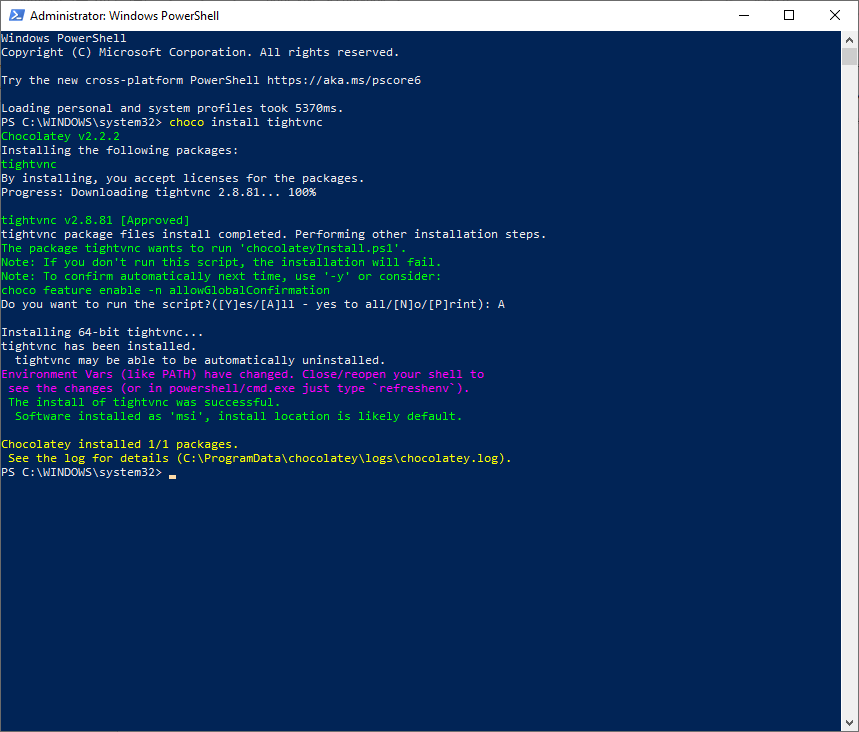
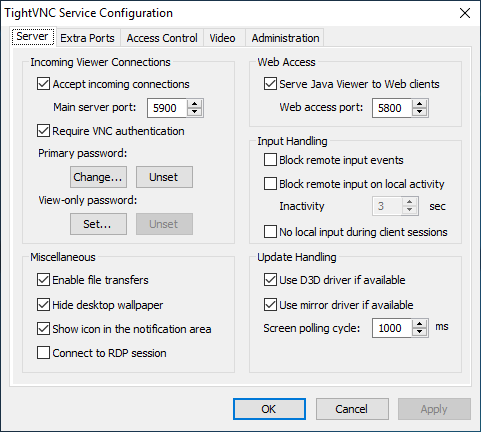
Now lets set the password by right clicking tightvnc icon in the bottom corner and setting the password to an 8 character password, by clicking on change primary password and typing in whatever you like
‘Suck3r00’
Now lets open powershell without administrator privileges. Lets say I got in remotely and chocolatey is there and I want to check to see if tight-vnc is there.
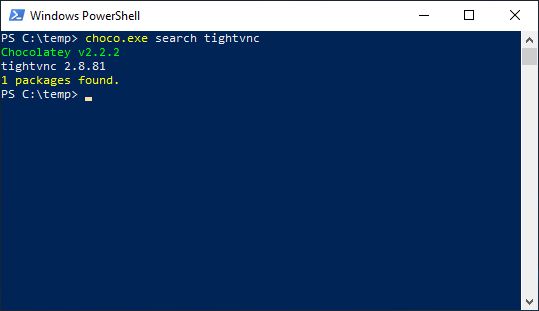
As you can see I find this without administrator privilege.
Now lets say I was able to view the registry and get the encrypted value for tight-vnc; all I need to do is see for a few seconds.
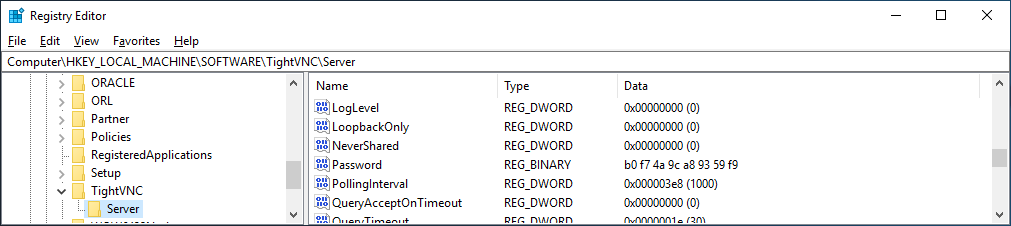
Now there are tools online where you can convert that hexadecimal to binary decimal values long before AI was around. But since I love GPT im going to ask it to convert that for me
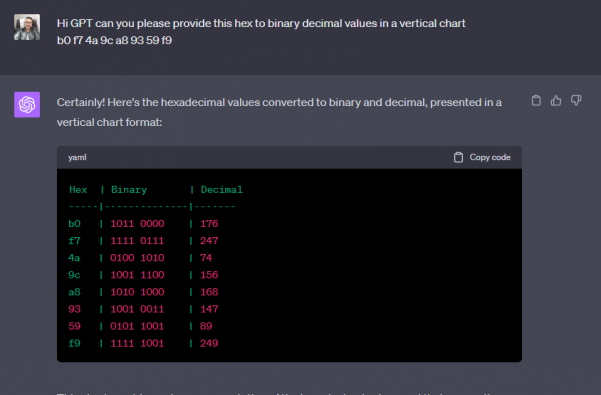
I have script that didn’t take long to put together from digging around for about an hour online. Which im obviously not going to share, BUT if I can do it……someone with skills could do pretty easy. A professional hacker NO SWEAT.
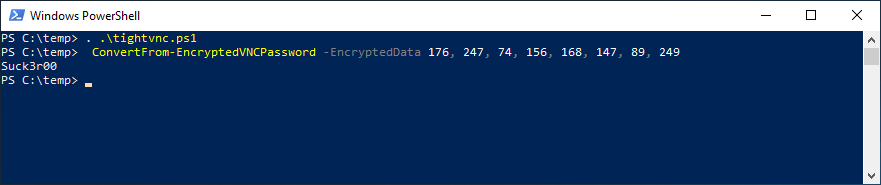
As you can see if you have rolled this out how dangerous it is.
Having said that I have also written an Ansible Role which will purge tightvnc from your infrastructure and deploy ultravnc which will use encryption and AD authentication. Which the other two currently do NOT do.
Hope you enjoyed getting P0WNed.
How to deploy Open-AKC(Authorized Key Chain)
What is OpenAKC?
OpenAKC is an open-source authentication gateway, dynamic SSH key manager, and privileged access management tool for Linux. It completely rethinks how SSH trust is managed across an estate.
As a centralised trust management platform, OpenAKC allows the authorized_keys mechanism on hosts to be completely disabled. SSH trust across your entire estate can be managed centrally by systems administration or information security staff, with rich control and monitoring features. Users and application developers can no longer add or remove trust relationships on their own, effectively enforcing any whitelist or approval process you want.
As a practical jump host solution, OpenAKC replaces the dubious mechanisms many of us have seen in production: shared private keys, dodgy sudo wrappers, and insecure AD-to-SSH bridges. It acts as a drop-in upgrade by migrating users to personal keys with self-service key management, enforcing passphrases, and providing full audit trails.
🤔 The Problems Everyone Thinks About But Never Solves
- Root access auditing – How do you give admins root while logging every keystroke per user?
- IAM without domain-joining – Joining every server to AD exposes user accounts, group memberships, and home directories to attackers who gain access.
- Uncontrolled root – Once someone sudos to root, there is zero control on what that root user can do. Multiple concurrent root sessions make logs useless.
- Limiting root capabilities – What if you could give admins root but prevent them from touching files you deem too sensitive?
- Eliminating password auth entirely – No more user/pass login vectors across the estate.
- Faster than LDAP/SSSD – Deploy this across multiple distros faster than traditional directory integration.
✅ OpenAKC solves all of these. This architecture takes a few steps to understand, but from a security standpoint it trumps anything most organisations are currently running.
Architecture Options
OpenAKC supports two deployment architectures depending on the size of your team and estate. Both can be scaled out for redundancy.

OpenAKC Architecture Overview (source: netlore.github.io/OpenAKC)
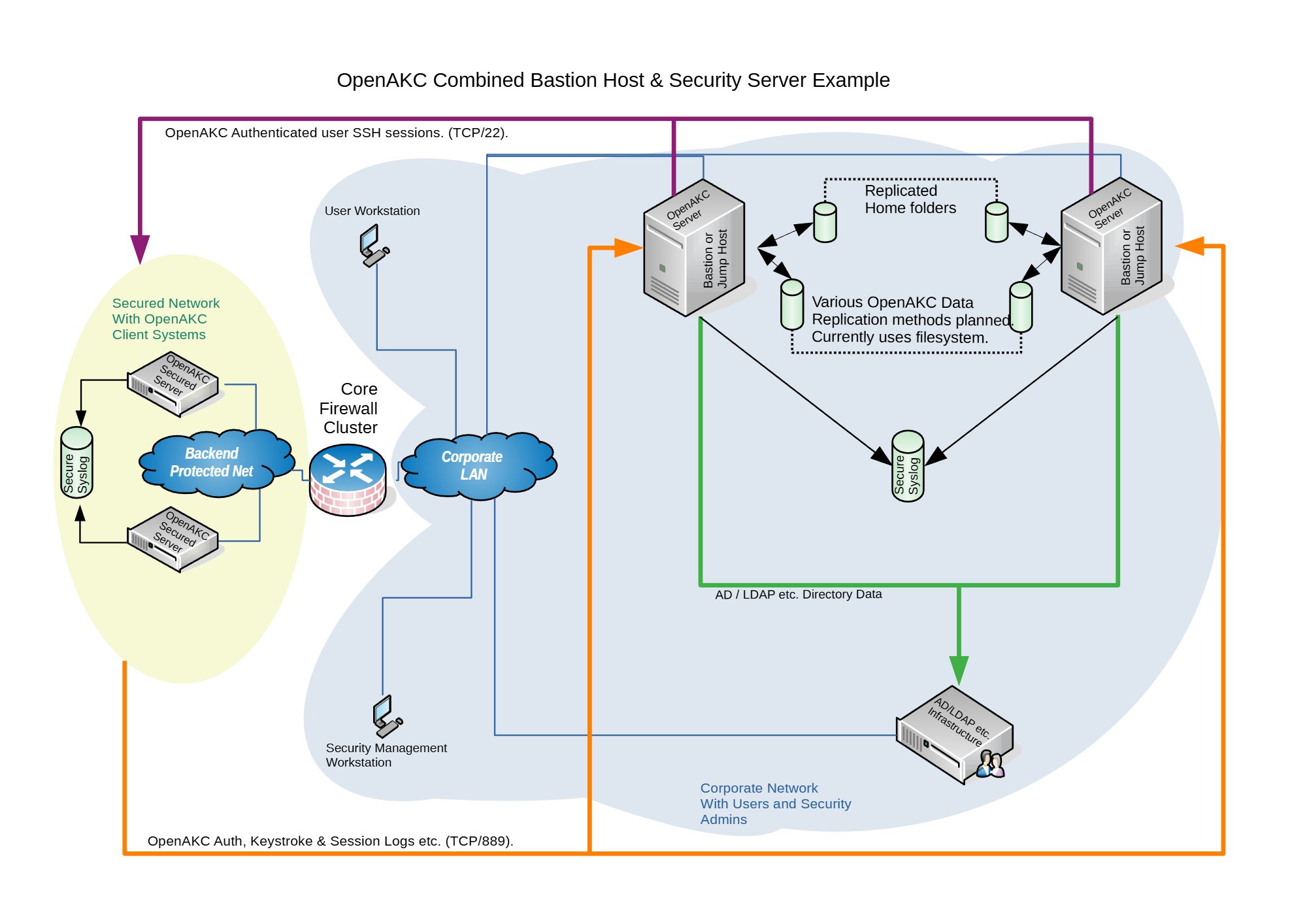
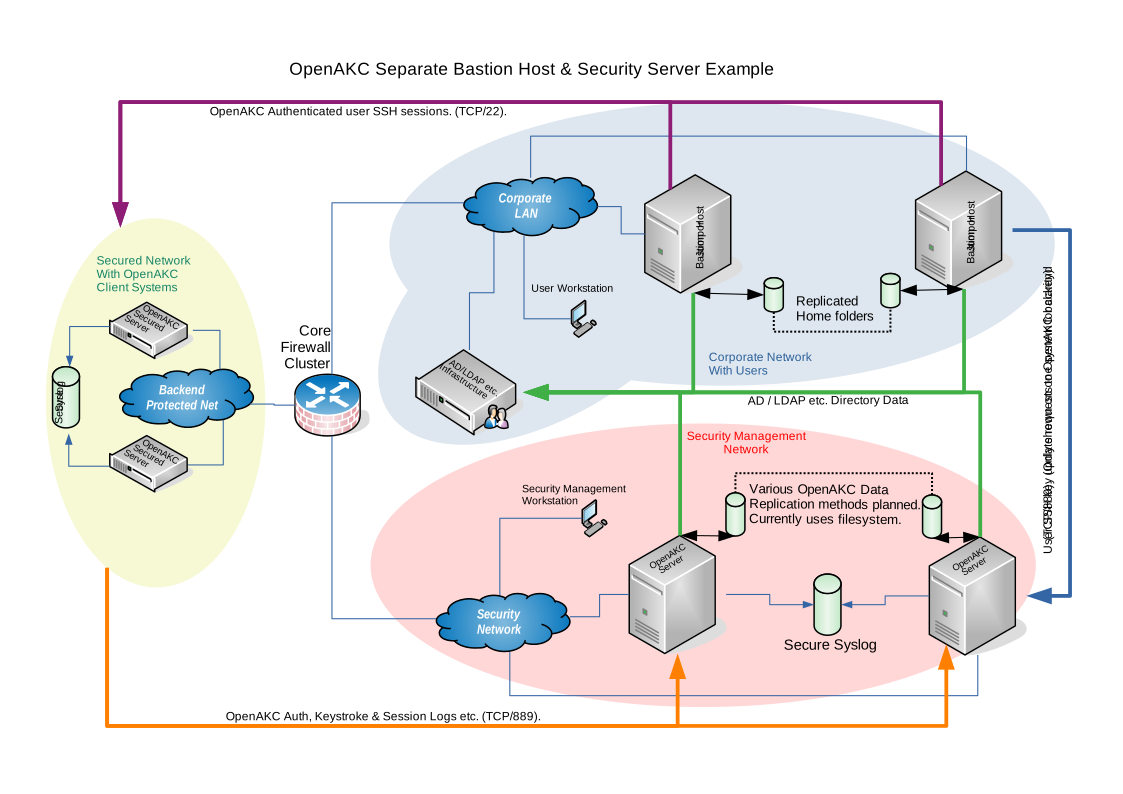
✨ Special Features
Practical Deployment Guide
This walkthrough covers the segregated architecture (separate jump host and security server). We are deploying on CentOS 7.
⚠️ Prerequisites: Two CentOS 7 machines deployed. Active Directory configured with a user in a Linux group. Disable firewalld and selinux on your machines before proceeding.
⚠️ The original repo source code does not support newer OS’s. I have updated all the code to work with newer versions and written automations to deploy it for any environment
👤 Adding New Users
Once the infrastructure is in place, onboarding a new user takes about 60 seconds:
Add user to AD and the appropriate Linux group
SSH to the jump host and generate keys:
ssh-keygen -t rsa
Register with OpenAKC:
openakc register
Done. The user can now SSH to any machine in the estate.
OpenAKC in Action
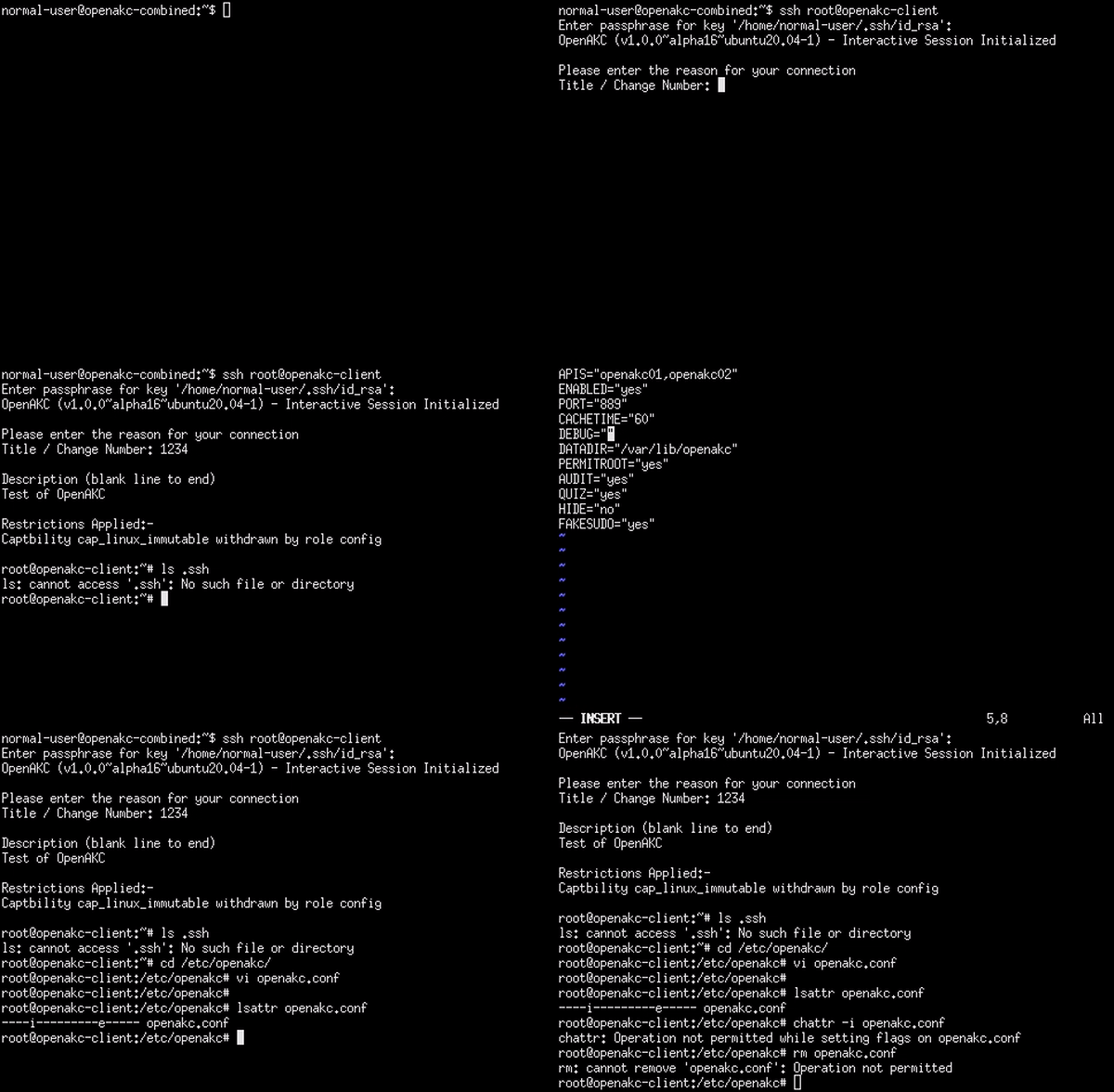
Live demo of OpenAKC authentication and session management
This is how you set up SSH security properly. No more blind trust, no more unaudited root, no more domain-joined attack surfaces.
Special thanks to James for teaching me this while @ LSE and for the innovation behind this project.
How to check if ports are open on an array of servers
Okay now there is a whole bunch of ways you can do this. This is just the way I played around with to save myself a bunch of time, using NCAT. Also previously known as NETCAT.
1.Ensure your Jumphost can ssh to all your newely deployed machines. Either you will use a root password or ssh key of some sort.
Note (ensure you have this install on all the new servers)
portcheckscriptnick.sh – this will check to see if your new server can talk to all the hosts below and check to see if those ports are up or down on each
============================
#!/bin/bash
host=”nick1 nick2 nick3 nick4″
for host in $host; do
for port in 22 53 67 68
do
if ncat -z $host $port
then
echo port $port $host is up
else
echo port $port $host is down
fi
done
done
========================================
Example:
Server1
Server2
Server3
Server4
6.Run the following below check the servers and see if each server can communicate with the hosts and ports necessary. If you see the are down. Then you will need to check the firewalls to see why the host is unable to communicate.
• for HOST in $(cat server.txt) ; do ssh root@$HOST “bash -s” < portcheckscriptnick.sh ; echo $HOST ; done 2>&1 | tee -a port.status
Note: the file port.status will be created on the jump host and you can simply look through to see if any ports were down on whichever hosts.
This is what the script looks like on one host if its working properly
[root@nick ~]# ./portcheckscriptnick.sh
port 22 192.168.1.11 is up
port 53 192.168.1.11 is down
port 67 192.168.1.11 is down
port 68 192.168.1.11 is down
This is what it will look like when you run against your array of new hosts from your jumpbox
[root@nick ~]# for HOST in $(cat servers.txt) ; do ssh root@$HOST “bash -s” < portcheckscriptnick.sh ; echo $HOST ; done
root@192.168.1.11’s password:
port 22 nick1 is up
port 53 nick1 is down
port 67 nick1 is down
port 68 nick1 is down
port 22 nick2 is up
port 53 nick2 is down
port 67 nick2 is down
port 68 nick2 is down
How to setup SMTP port redirect with IPTABLES and NAT
RedHat/Centos
Okay its really easy to do. You will need to add the following in /etc/sysctl.conf
Note: these are kernel parameter changes
kernel.sysrq = 1
net.ipv4.tcp_syncookies=1
net/ipv4/ip_forward=1 (important)
net.ipv4.conf.all.route_localnet=1 (important)
net.ipv4.conf.default.send_redirects = 0
net.ipv4.conf.all.send_redirects = 0
It will probably look something like the rules below.
EXAMPLE
# Generated by iptables-save v1.2.8 on Thu July 6 18:50:55 2020
*filter
:INPUT ACCEPT [0:0]
:FORWARD ACCEPT [0:0]
:OUTPUT ACCEPT [2211:2804881]
:RH-Firewall-1-INPUT – [0:0]
-A INPUT -j RH-Firewall-1-INPUT
-A FORWARD -j RH-Firewall-1-INPUT
-A RH-Firewall-1-INPUT -i lo -j ACCEPT
-A RH-Firewall-1-INPUT -p icmp -m icmp –icmp-type 255 -j ACCEPT
-A RH-Firewall-1-INPUT -p esp -j ACCEPT
-A RH-Firewall-1-INPUT -p ah -j ACCEPT
-A RH-Firewall-1-INPUT -m state –state RELATED,ESTABLISHED -j ACCEPT
-A RH-Firewall-1-INPUT -p tcp -m tcp –dport 1025-m state –state NEW -j ACCEPT (make sure to have open)
-A RH-Firewall-1-INPUT -p tcp -m tcp –dport 443 -m state –state NEW -j ACCEPT
-A RH-Firewall-1-INPUT -p tcp -m tcp –dport 8443 -m state –state NEW -j ACCEPT
-A RH-Firewall-1-INPUT -p tcp -m tcp –dport 25 -m state –state NEW -j ACCEPT (make sure to have open)
-A RH-Firewall-1-INPUT -p tcp -m tcp –dport 80 -m state –state NEW -j ACCEPT
-A RH-Firewall-1-INPUT -p tcp -m tcp –dport 21 -m state –state NEW -j ACCEPT
-A RH-Firewall-1-INPUT -p tcp -m tcp –dport 22 -m state –state NEW -j ACCEPT
-A RH-Firewall-1-INPUT -p tcp -m tcp –dport 106 -m state –state NEW -j ACCEPT
-A RH-Firewall-1-INPUT -p tcp -m tcp –dport 143 -m state –state NEW -j ACCEPT
-A RH-Firewall-1-INPUT -p tcp -m tcp –dport 465 -m state –state NEW -j ACCEPT
-A RH-Firewall-1-INPUT -p tcp -m tcp –dport 993 -m state –state NEW -j ACCEPT
-A RH-Firewall-1-INPUT -p tcp -m tcp –dport 995 -m state –state NEW -j ACCEPT
-A RH-Firewall-1-INPUT -p tcp -m tcp –dport 8222 -m state –state NEW -j ACCEPT
-A RH-Firewall-1-INPUT -j REJECT –reject-with icmp-host-prohibited
COMMIT
#ADD this section with another Commit like below
# Completed on Thu July 6 18:50:55 2020
# Generated by iptables-save v1.2.8 on Thu July 6 18:50:55 2020
*nat
:PREROUTING ACCEPT [388:45962]
:POSTROUTING ACCEPT [25:11595]
:OUTPUT ACCEPT [25:11595]
-A PREROUTING -p tcp -m tcp –dport 1025 -j REDIRECT –to-ports 25
COMMIT
# Completed on Thu July 6 18:50:55 2020
[root@nick ~]# iptables -L -n | grep 1025
ACCEPT tcp — 0.0.0.0/0 0.0.0.0/0 tcp dpt:1025 state NEW
[root@nick ~]# iptables -L -n -t nat| grep 1025
REDIRECT tcp — 0.0.0.0/0 0.0.0.0/0 tcp dpt:1025 redir ports 25
Note:
You will need to run telnet from outside the host as you cant NAT to localhost locally. 🙂
[root@nick1 ~]# telnet 192.168.86.111 1025
Trying 192.168.86.111…
Connected to localhost.
Escape character is ‘^]’.
220 nick.ansible.com ESMTP Postfix